
Before you begin
The Add New Connection screen opens with a Before you start panel. Both steps below are optional. Complete them only if they apply to you.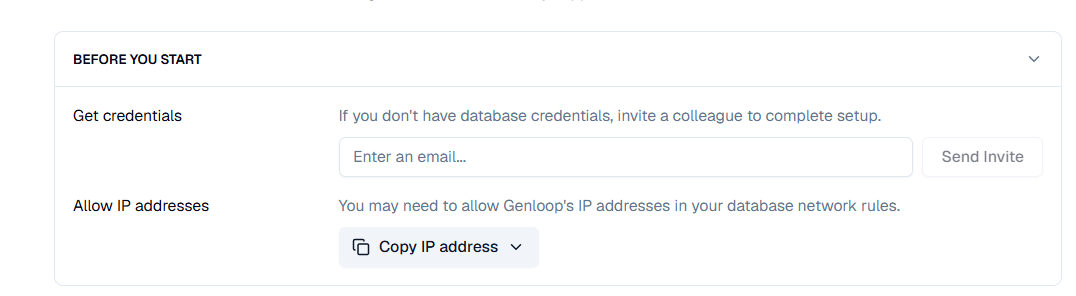
Before you begin
The Add New Connection screen opens with a Before you start panel. Both steps below are optional. Complete them only if they apply to you.Connect your database
1
Choose your database type
Select your engine from the supported list, then click Add connection details.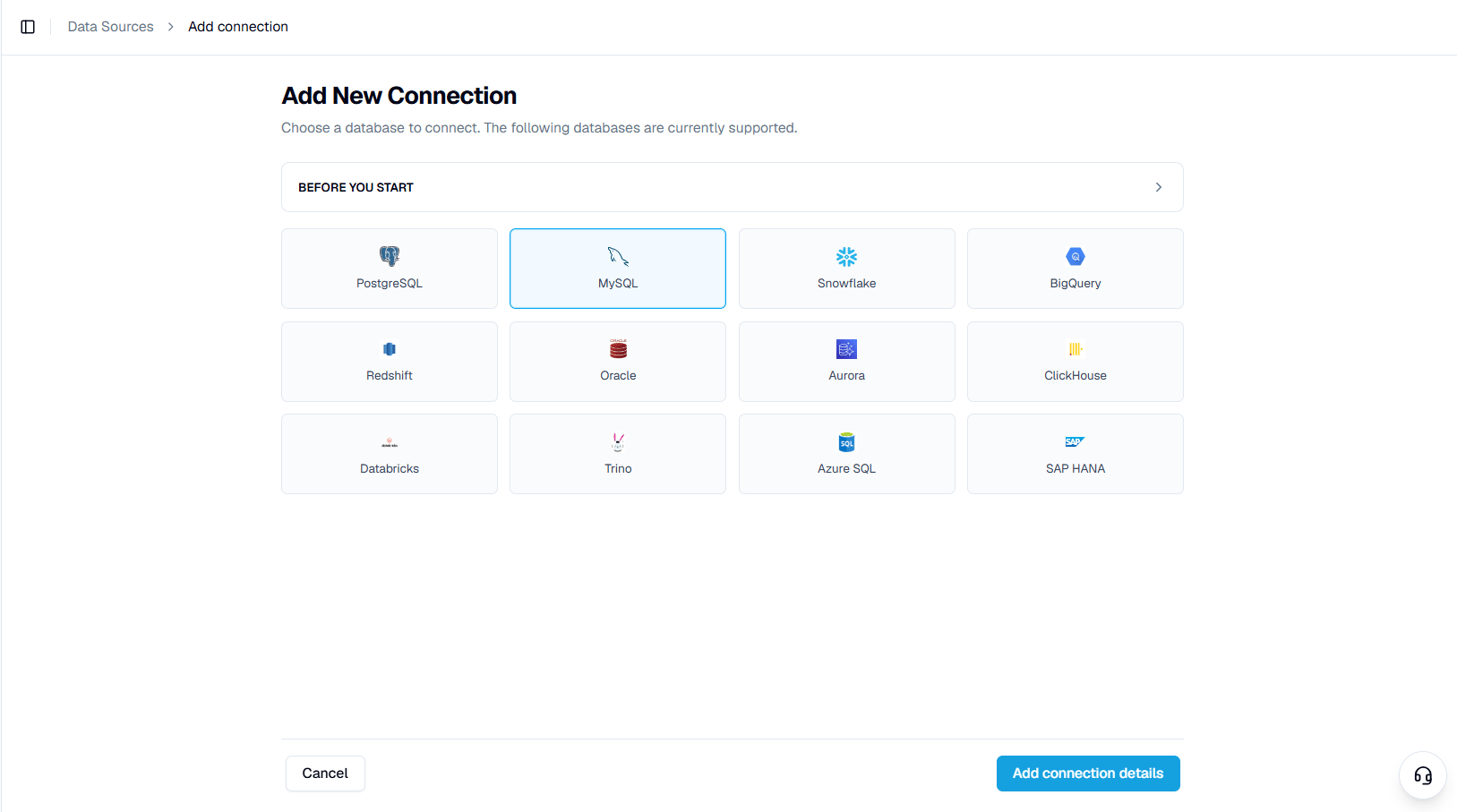
2
Enter connection details
Name the connection, confirm the Data Source, and complete the fields for your database.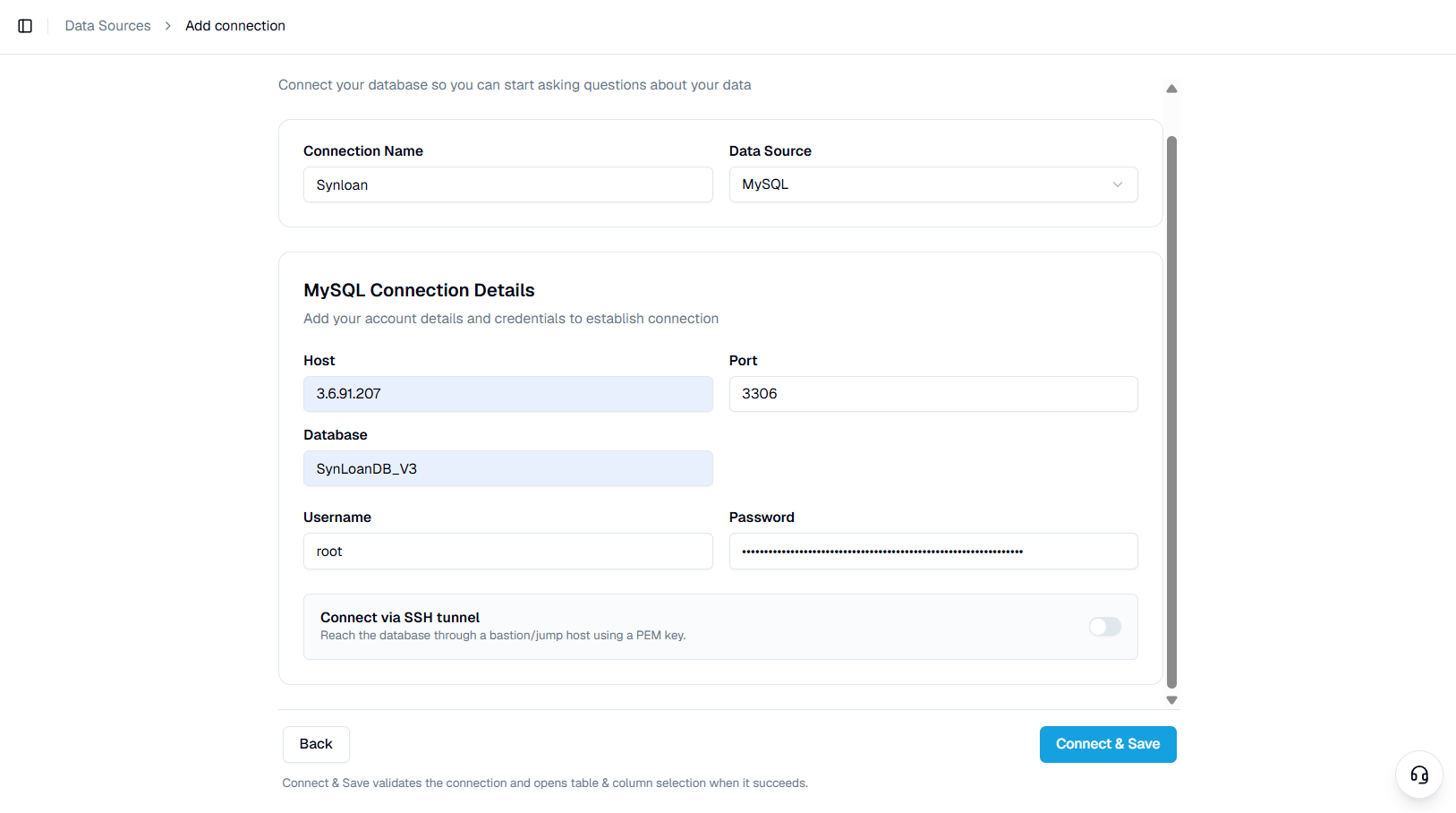
The connecting user needs read access only. Genloop never writes to your source. Field names and defaults vary by engine — see the database guides for yours.
3
Add an SSH tunnel (optional)
If you reach the database through a bastion or jump host, enable Connect via SSH tunnel and complete the tunnel fields.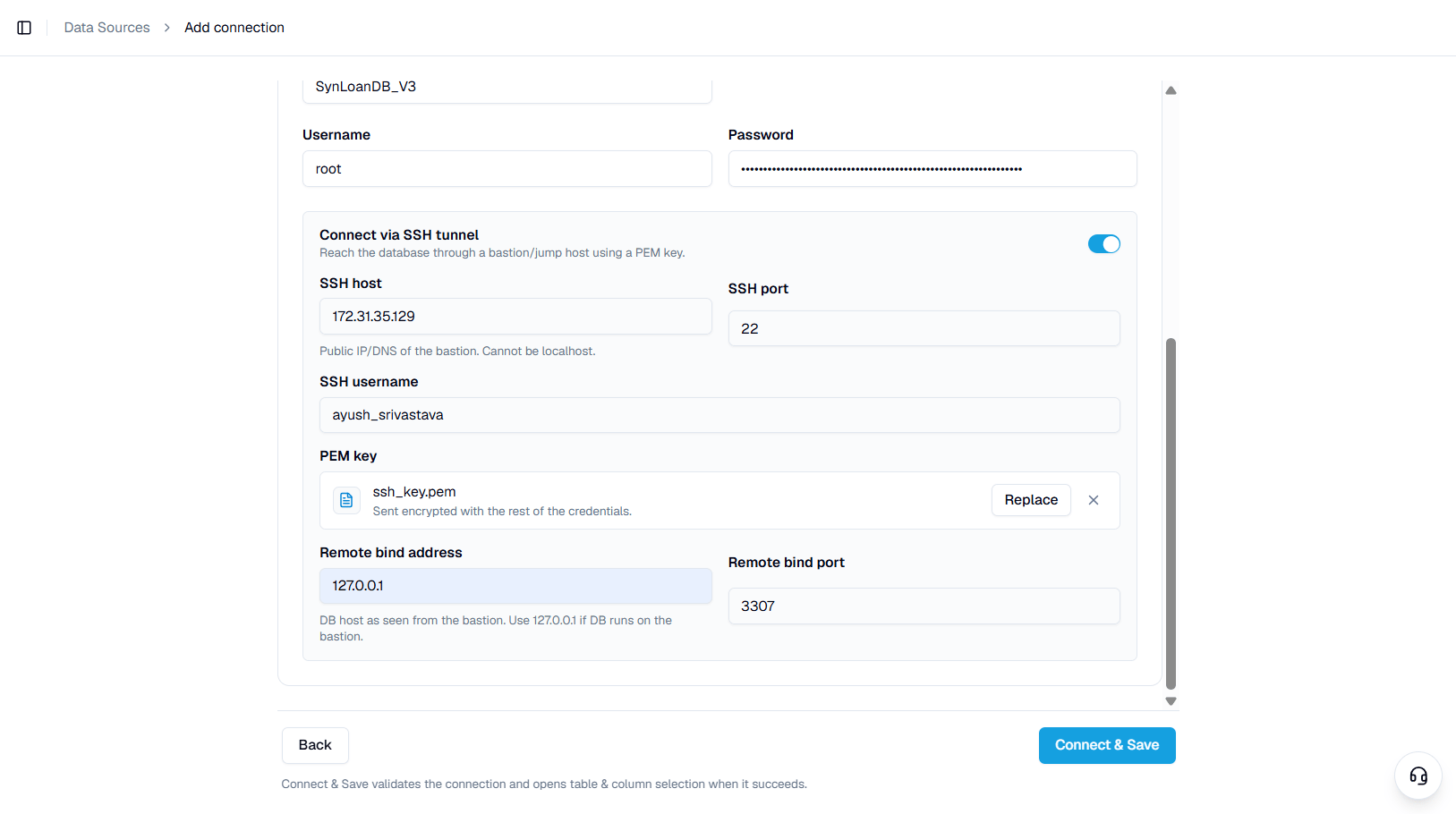
4
Validate the connection
Click Connect & Save. Genloop validates the connection and opens table selection when it succeeds. A failed validation names the exact problem to fix, usually a credential, a port, or an IP address that still needs to be allowed.
5
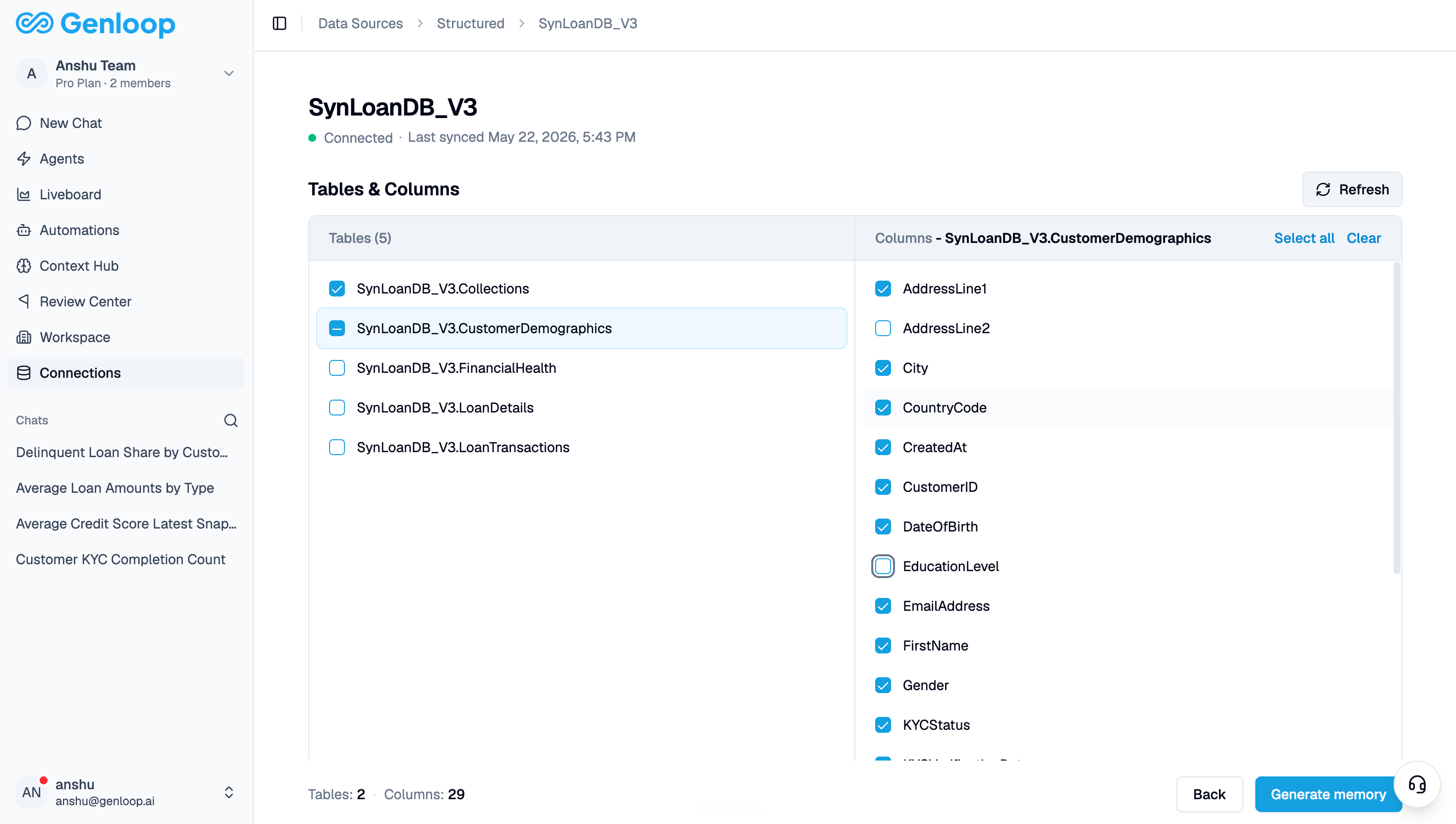
Select tables and columns
Choose the tables and columns to build memory on. Select a table to view its columns, and use Select all or Clear to adjust. Start with the tables that answer your team’s most common questions; you can add more later. The footer totals your selected Tables, Columns, and Workspace Tables against your plan limit.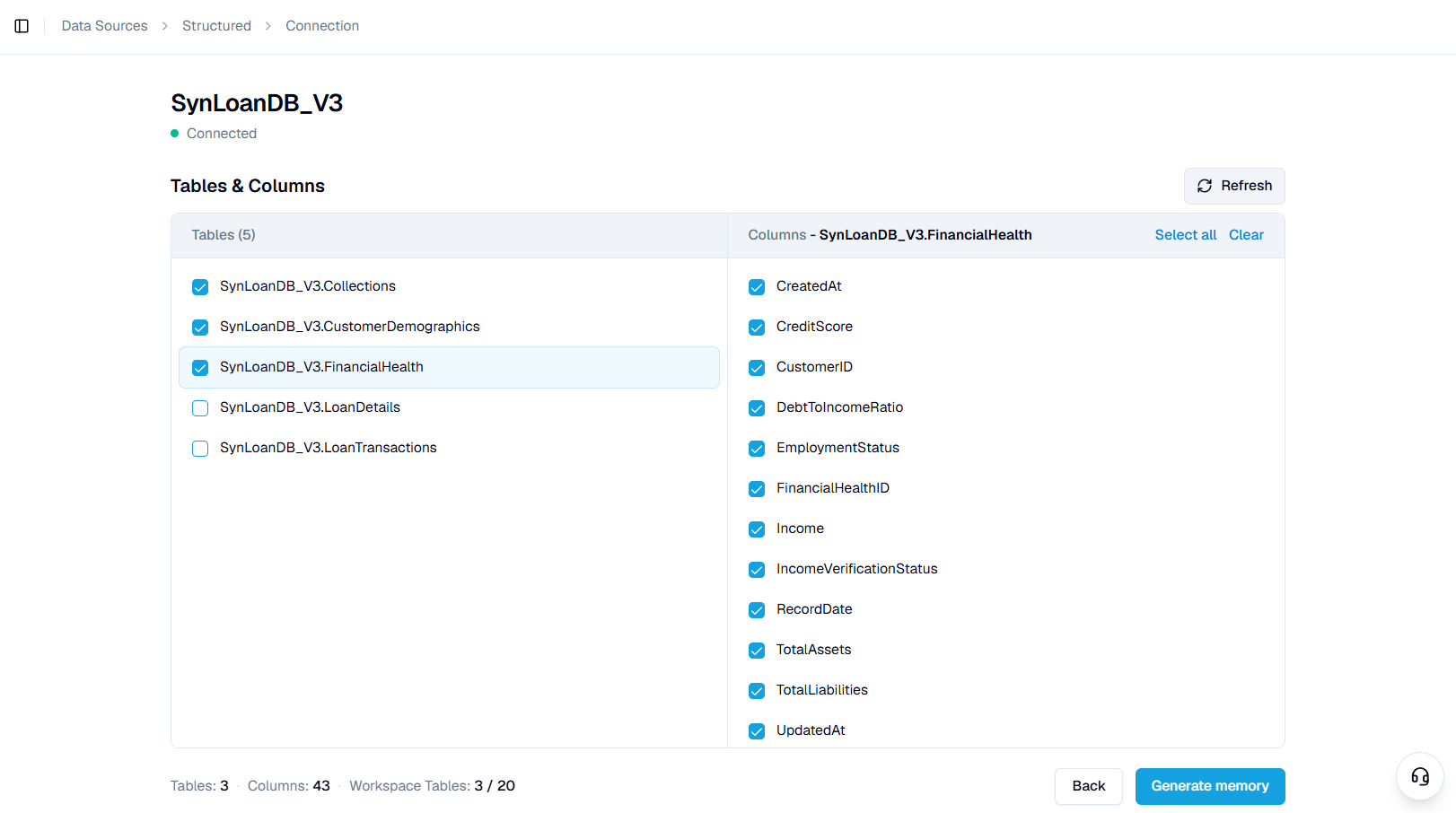
6
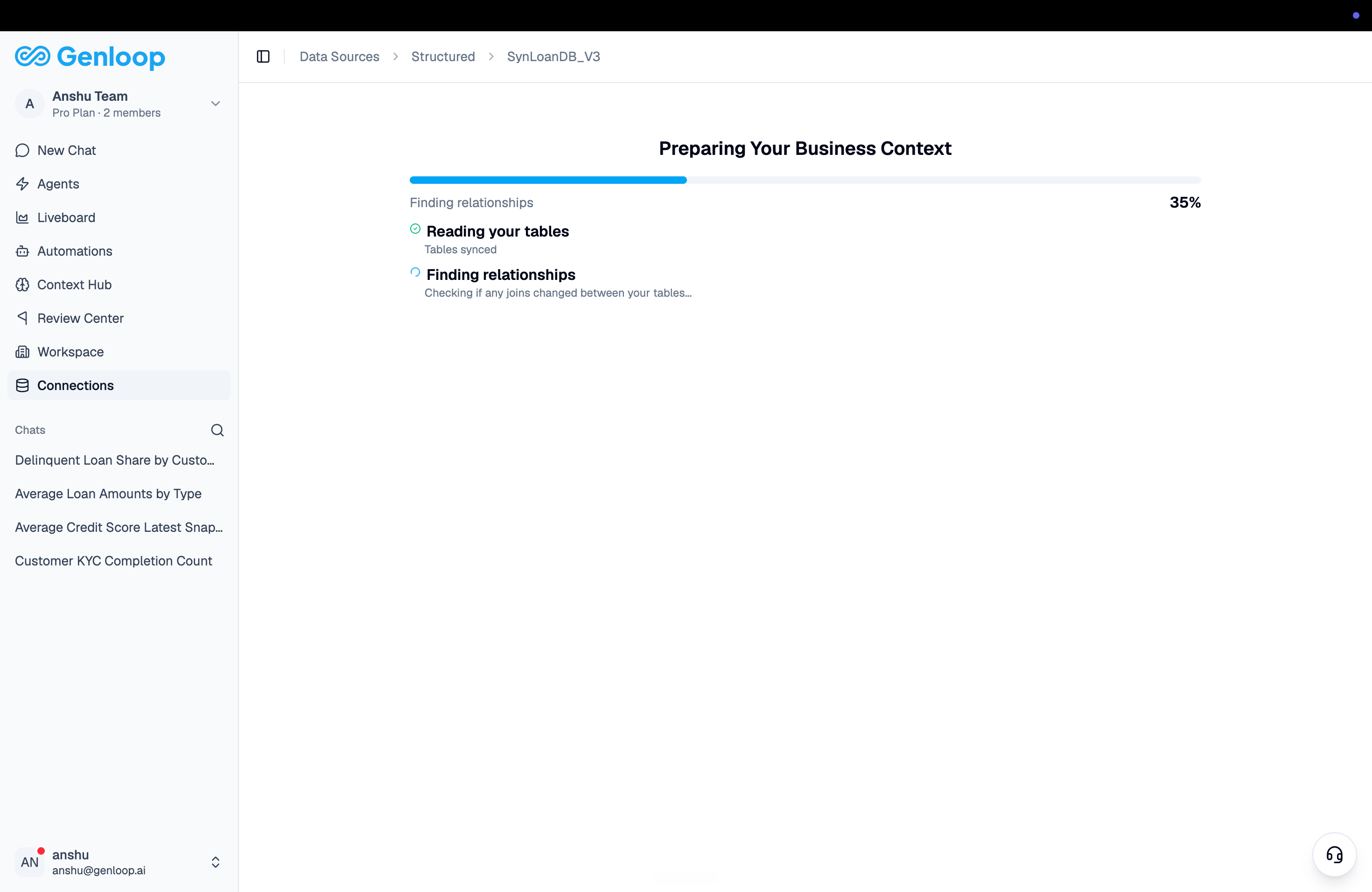
Generate memory
Click Generate memory. Genloop builds the semantic context: column descriptions, table relationships, and business meaning. Progress appears as each stage completes. When it finishes, the connection is live and ready to query in Chat.
Keep tables in sync
Schemas change as tables and columns are added or dropped. Open a connection and click Refresh to re-read the live schema. Genloop detects the drift and shows what changed, so your selection stays aligned with the database.Add more tables later
Onboard in stages. Tables that already have memory show an In Context badge. To add tables you skipped, reopen the connection, select the remaining tables or columns, and click Generate memory. Genloop processes only the new selection and leaves your existing memory unchanged.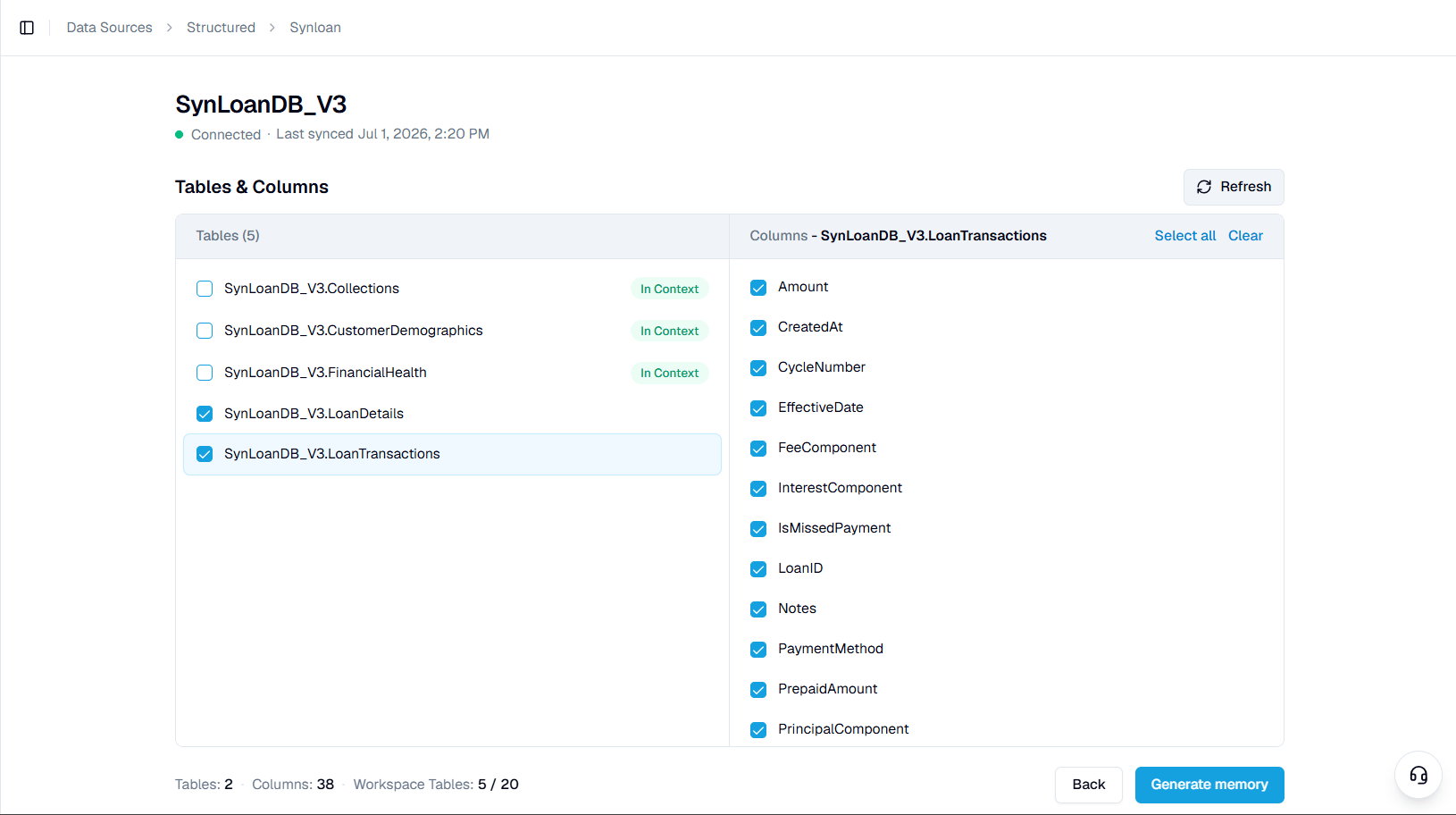
Remove a connection
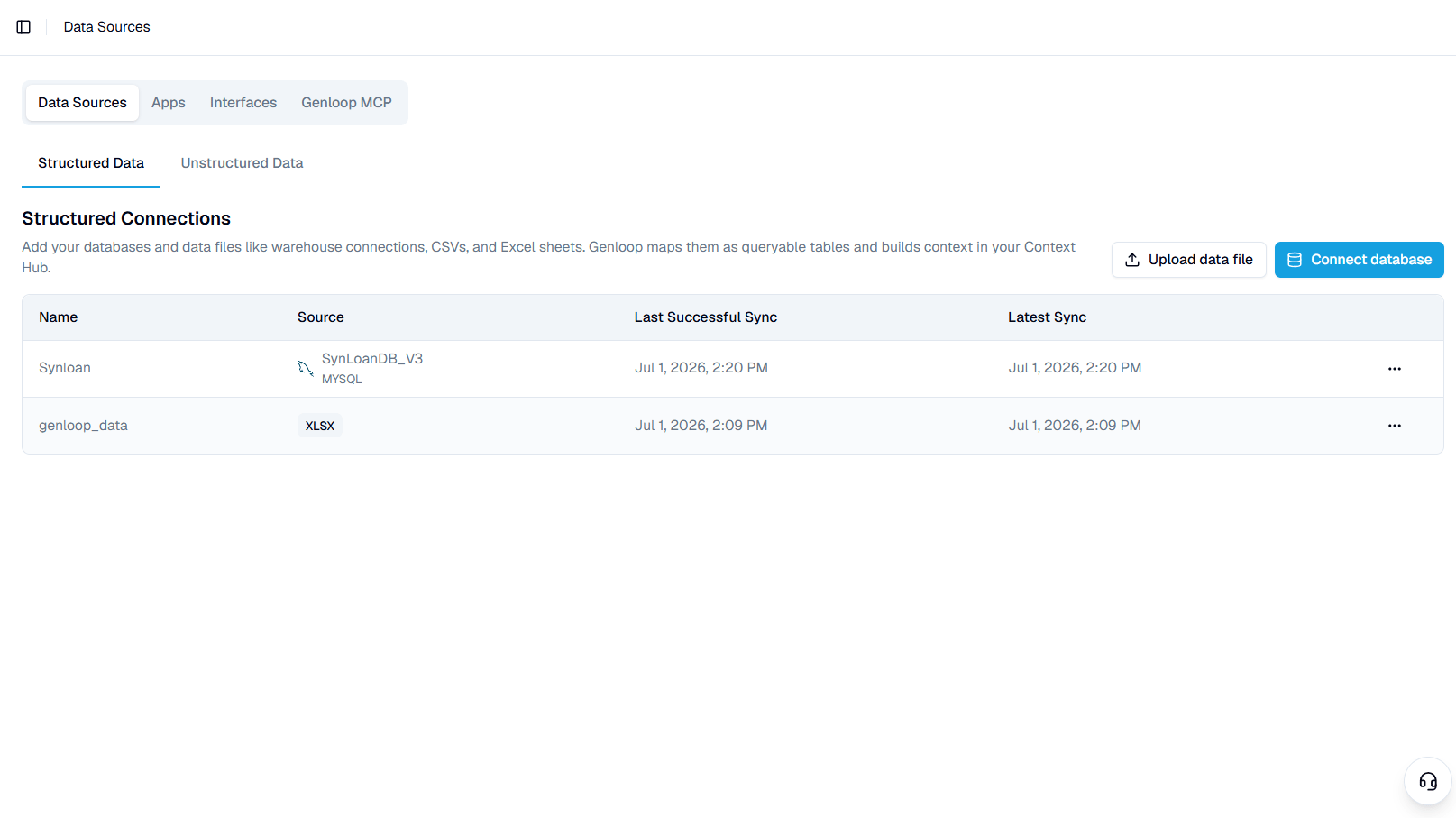
Connections appear in the Structured Data tab with their source, last successful sync, and latest sync time. Open the ⋯ menu on a row to manage it.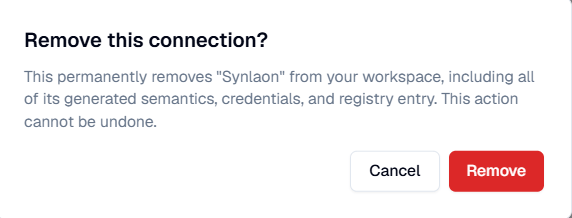
Connect your database
1
Choose your database type
Select your engine from the supported list, then click Add connection details.
2
Enter connection details
Name the connection, confirm the Data Source, and complete the fields for your database.
The connecting user needs read access only. Genloop never writes to your source. Field names and defaults vary by engine — see the database guides for yours.
3
Add an SSH tunnel (optional)
If you reach the database through a bastion or jump host, enable Connect via SSH tunnel and complete the tunnel fields.
4
Validate the connection
Click Connect & Save. Genloop validates the connection and opens table selection when it succeeds. A failed validation names the exact problem to fix, usually a credential, a port, or an IP address that still needs to be allowed.
5
Select tables and columns
Choose the tables and columns to build memory on. Select a table to view its columns, and use Select all or Clear to adjust. Start with the tables that answer your team’s most common questions; you can add more later. The footer totals your selected Tables, Columns, and Workspace Tables against your plan limit.
6
Generate memory
Click Generate memory. Genloop builds the semantic context: column descriptions, table relationships, and business meaning. Progress appears as each stage completes. When it finishes, the connection is live and ready to query in Chat.
Keep tables in sync
Schemas change as tables and columns are added or dropped. Open a connection and click Refresh to re-read the live schema. Genloop detects the drift and shows what changed, so your selection stays aligned with the database.Add more tables later
Onboard in stages. Tables that already have memory show an In Context badge. To add tables you skipped, reopen the connection, select the remaining tables or columns, and click Generate memory. Genloop processes only the new selection and leaves your existing memory unchanged.Remove a connection
Connections appear in the Structured Data tab with their source, last successful sync, and latest sync time. Open the ⋯ menu on a row to manage it.Next steps
Database guidesDatabase guides
Field-by-field setup for your specific databaseField-by-field setup for your specific database.
Upload a data fileUpload a data file
Add CSV or Excel files alongside your databaseAdd CSV or Excel files alongside your database.
Context Hub
View and edit the memory Genloop built from your connection.
Unstructured Data
Add business documents that inform Genloop’s answers.