
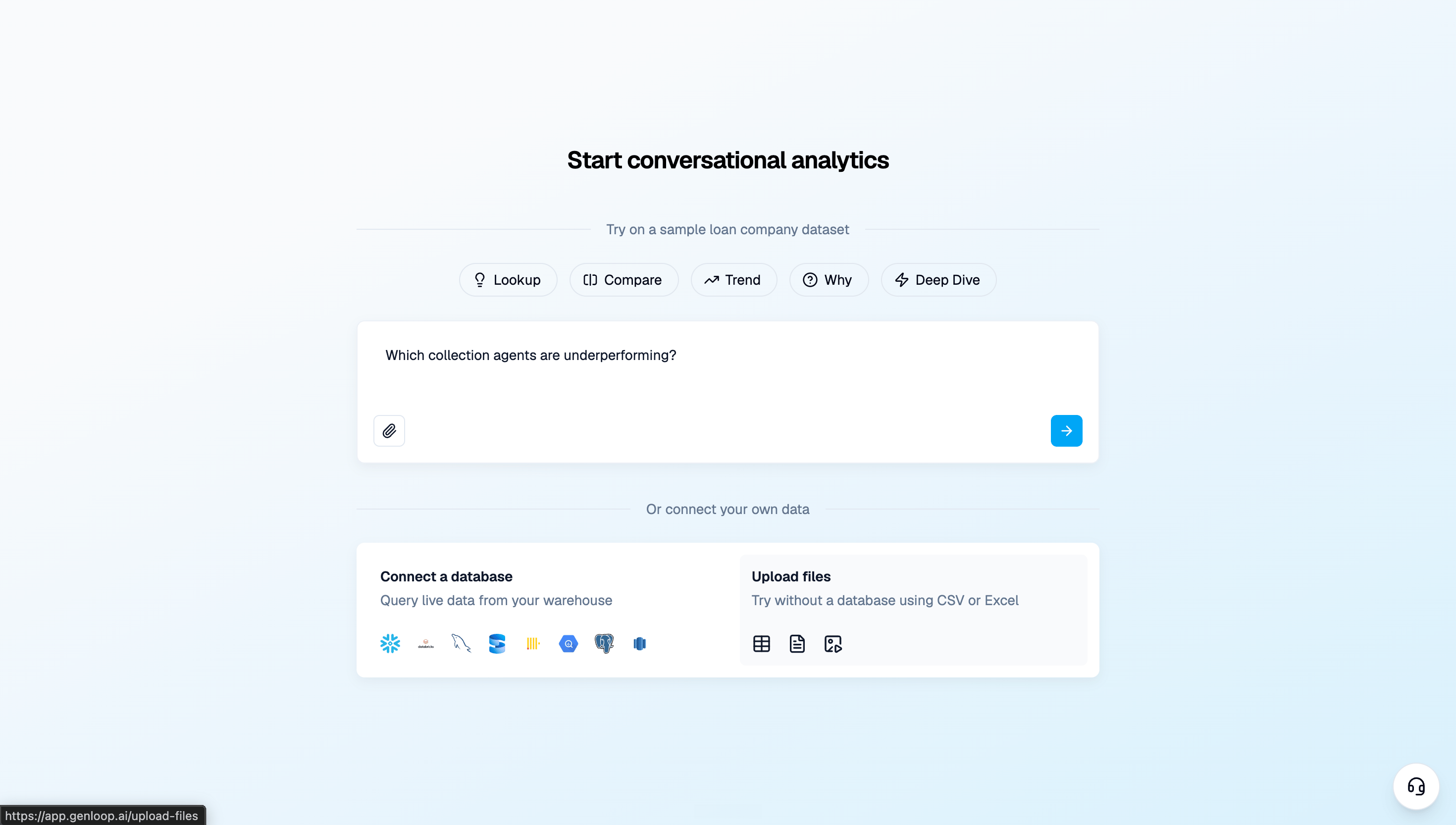
Two ways to connect
Connect a database
Supported sources: MySQL, PostgreSQL, Snowflake, BigQuery, Redshift, Databricks. This is a 4-step process: Step 1 — Select your database Choose your database type from the list of supported sources.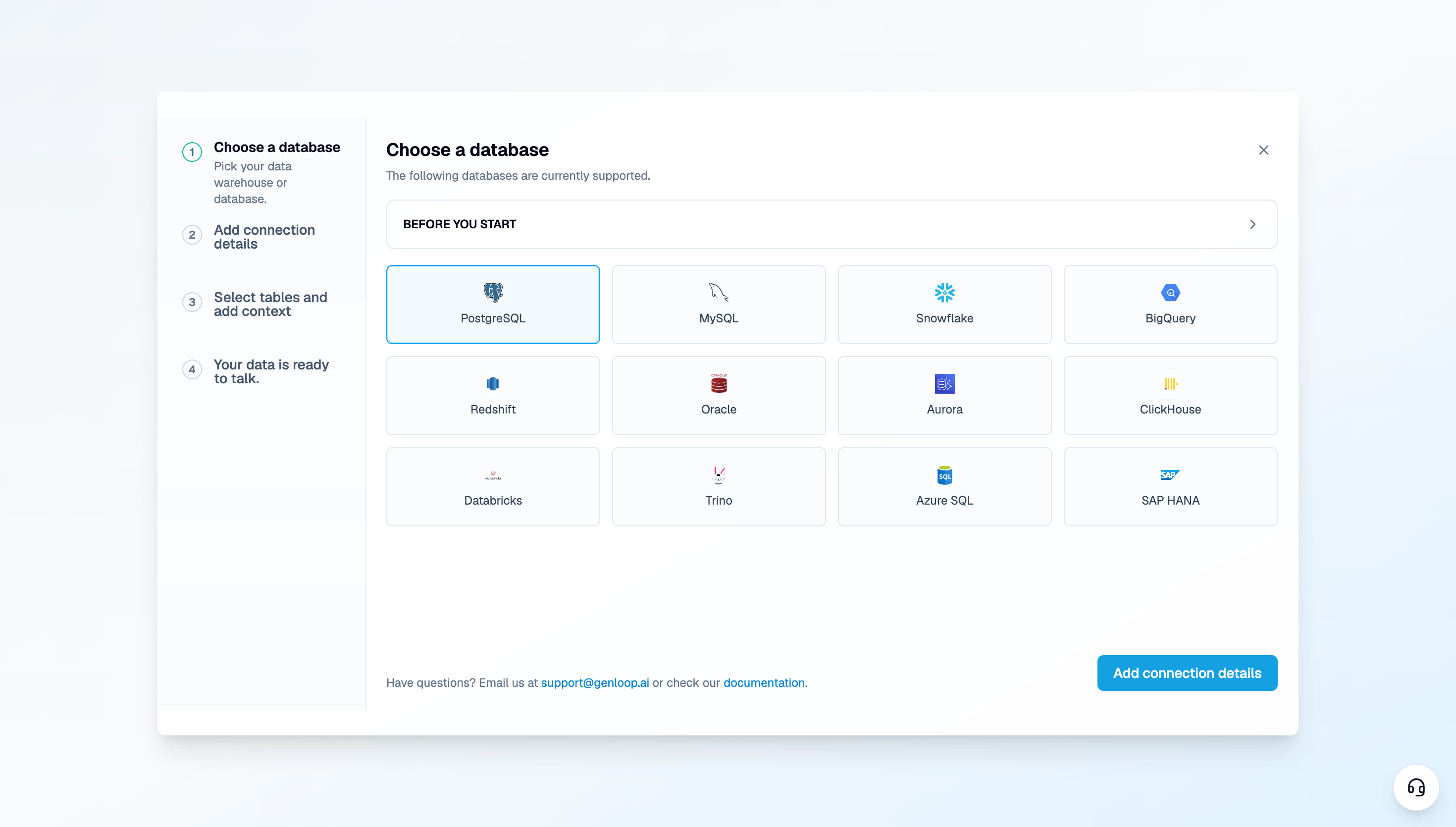

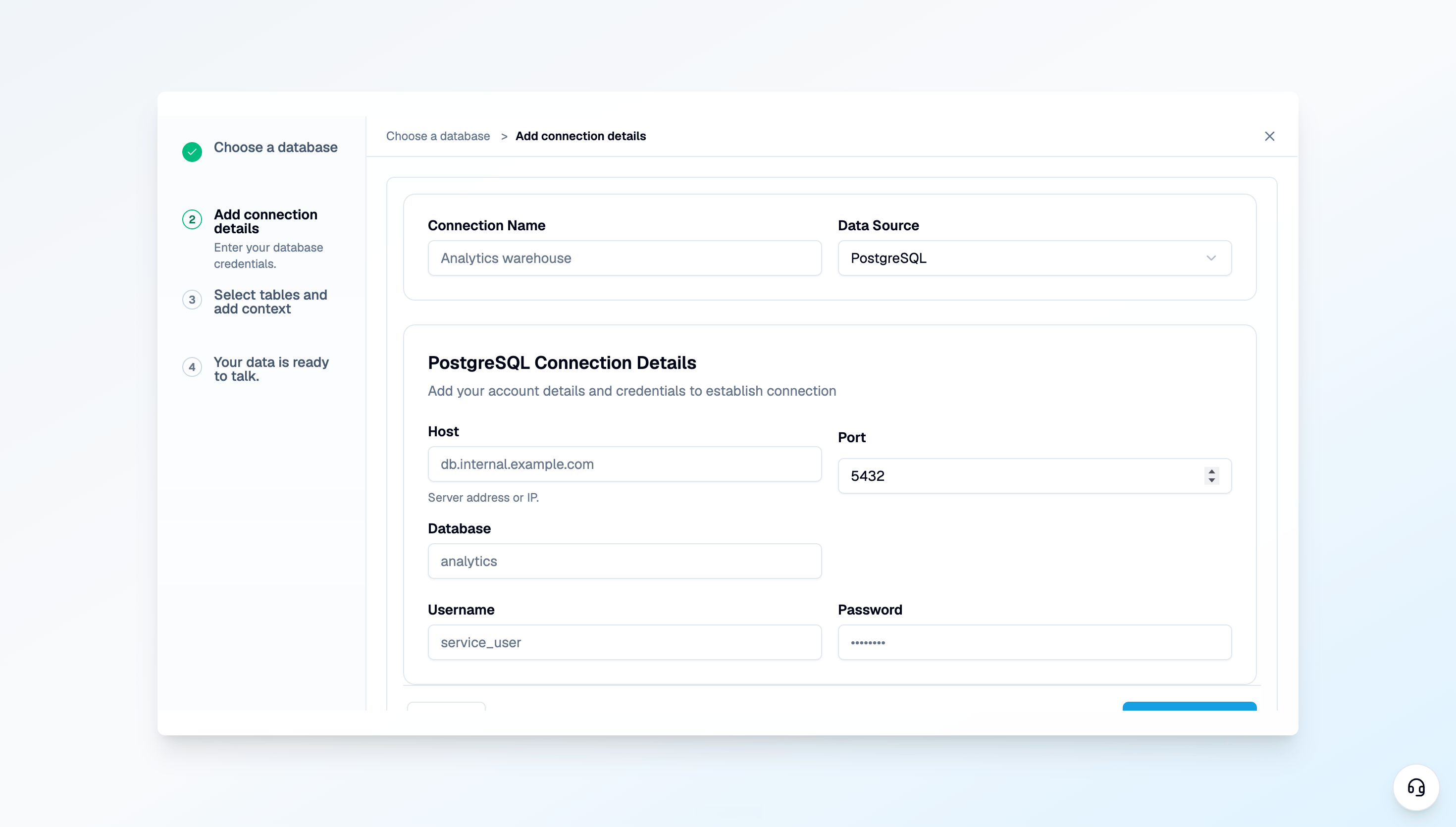
Make sure the credentials you’re using have read access to the tables you want Genloop to work with. Write access is not required.
.md, .txt, .pdf, or .docx format. This helps Genloop understand not just the shape of your data, but how your business actually uses it. The more context you add here, the better your answers get from day one.
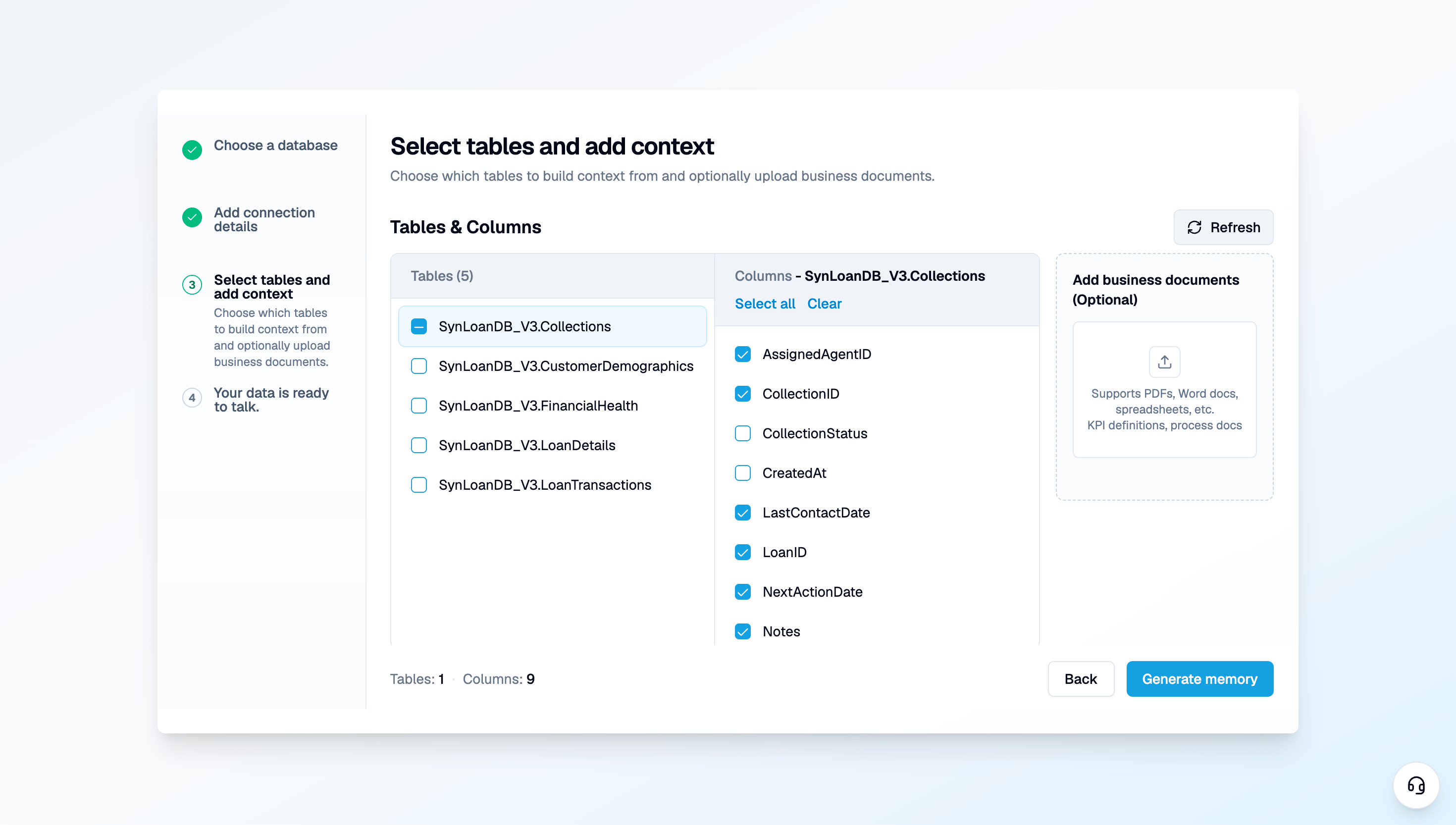
Upload a data file
If you don’t have a database connection ready, you can upload a data file directly. Supported formats:.csv, .xlsx, .xls
At least one data file is required to move forward on this path. Data files are different from business context documents — data files are what Genloop builds memory on, while context documents (docs, markdown files) help Genloop understand your business rules and definitions. You can add both.
Your workspace is set up
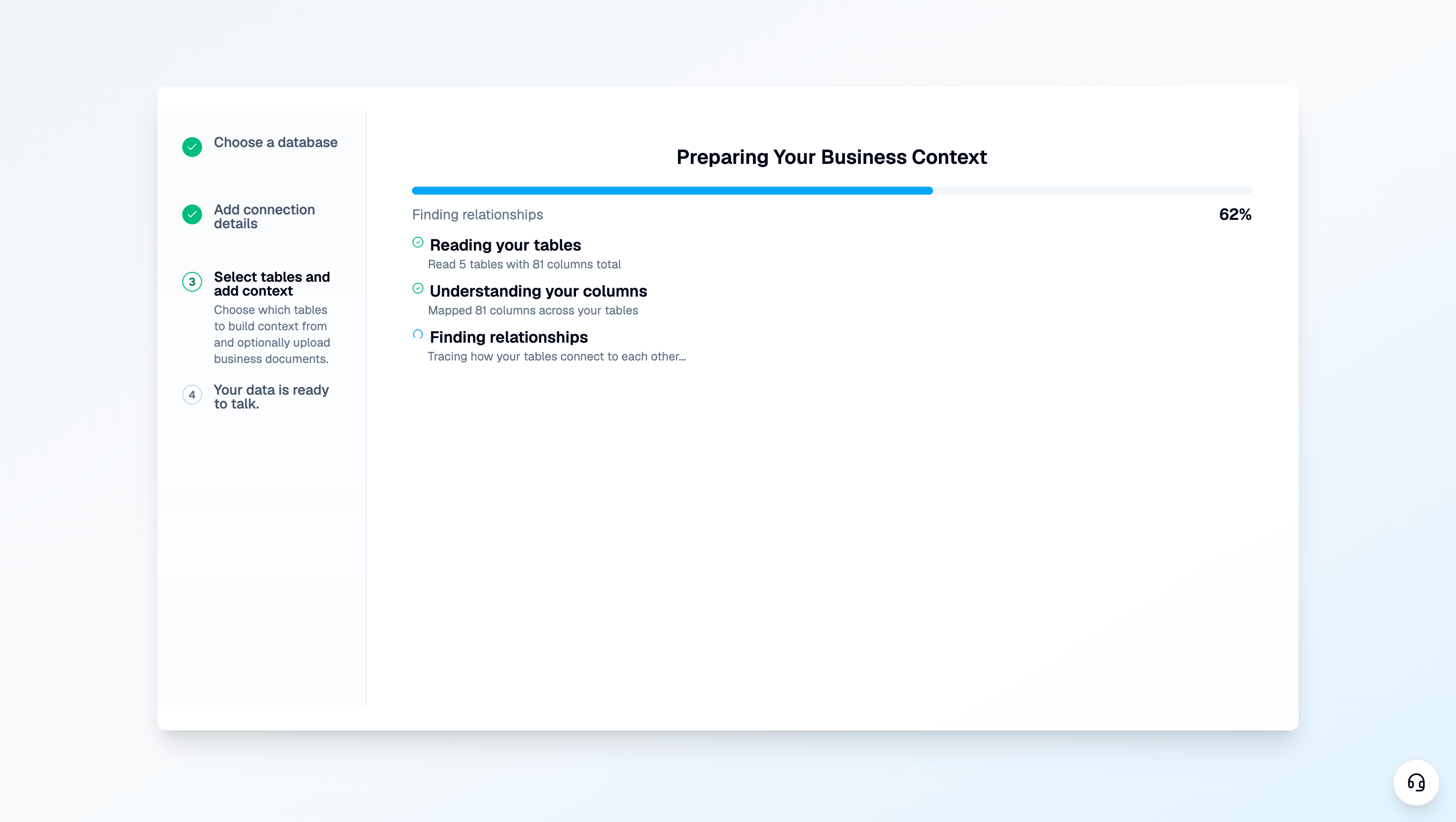
Your data is connected and Genloop has built its initial context. From here, it keeps learning: every question you ask, every correction you give, every piece of feedback refines what it knows.Next steps
First answer
Ask your first question in Chat and see how Genloop reasons through it.
Context Hub
Review and edit what Genloop learned from your tables and documents.