
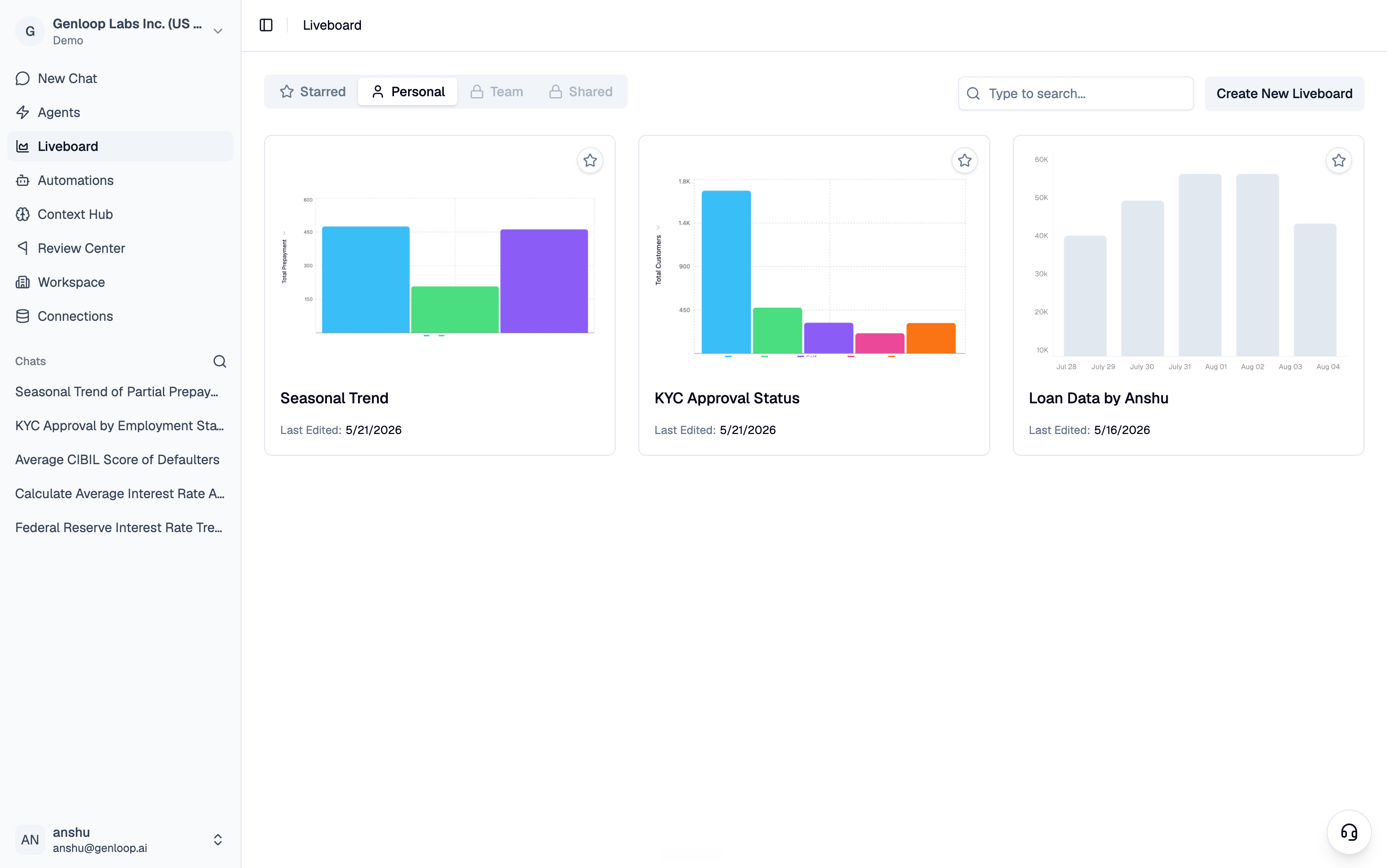
Finding your Liveboards
Go to Liveboard in the sidebar. Your boards are organized across four tabs:- Starred: boards you have favorited for quick access
- Personal: boards you created
- Team: boards published to your workspace
- Shared: boards other people have shared with you
Team and Shared Liveboards are a paid-plan feature. On the Free plan you can view them but cannot publish or create them until you upgrade.
Creating and sharing a Liveboard
Click Create New Liveboard to start a blank board with a name and description, or save an answer from Chat to spin up a new board on the fly. Once you have a board, you can share it two ways:- Share with people: Grant specific teammates access at one of three permission levels:
- View: read the board and its data
- Edit: rename tiles and adjust filters
- Full: edit tile SQL, remove tiles, and manage sharing
- Publish to Team: Make the board available to your whole workspace under the Team tab.
Adding tiles from Chat
When an answer comes back in Chat, click Save to Liveboard. A dialog lets you search for an existing board, create a new one inline, or select several boards at once, then Add to Liveboard. Toggle between chart and table view before you save to control how the tile first appears.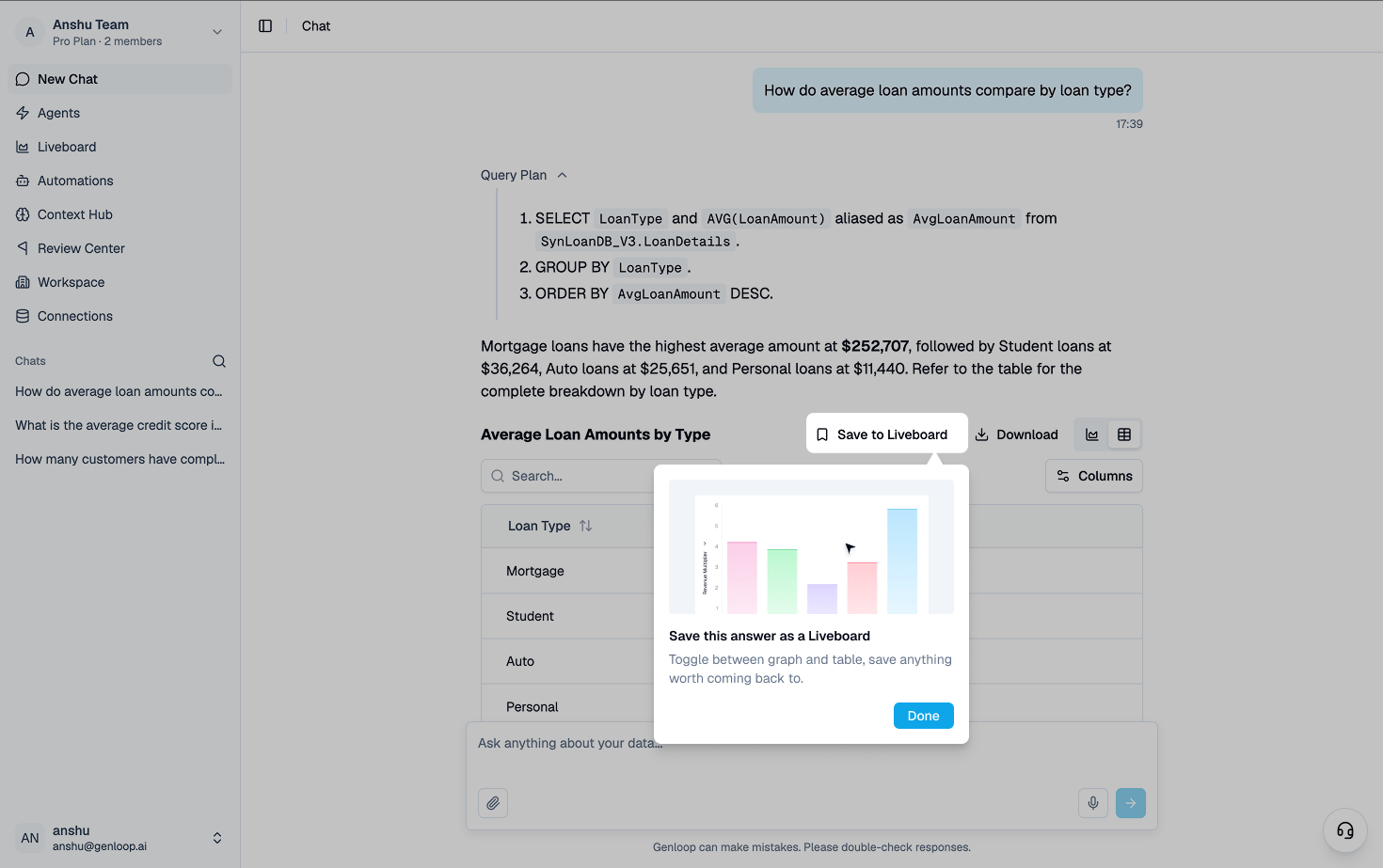
Working with tiles
A Liveboard holds two kinds of tiles:- Metrics: a single KPI value, shown in a grid at the top of the board
- Graphs: charts or tables, shown below, each with a Table / Visualisation toggle
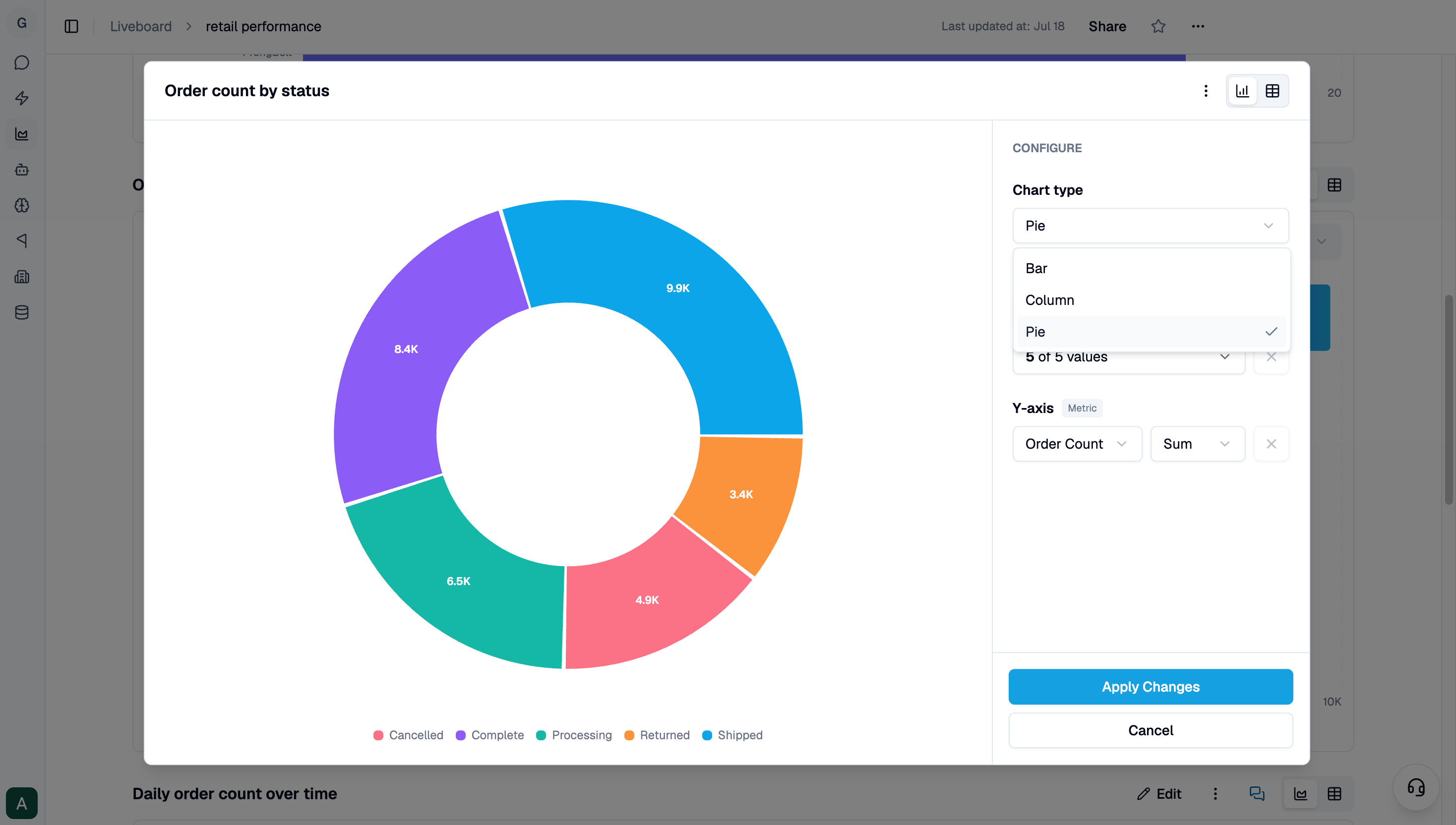
- Edit name: rename the tile
- View / Edit SQL: inspect or change the query behind the tile (see below)
- Download Image: export the chart as a PNG
- Export CSV: download the full data, or the table- or chart-filtered rows
- Copy Graph ID / Table ID: copy an identifier (optionally with the current filters) to embed the tile elsewhere
- Remove: delete the tile from the board
Viewing and editing a tile’s SQL
From a tile’s menu, choose View / Edit SQL to see the exact query behind it. If you have permission, you can adjust the SQL and re-run it. Genloop also exposes the tile’s filterable columns as editable toggles, while structural parts of the query stay fixed. So you can change what the tile shows without breaking how it is built.Tiles with multiple charts
Some questions are too big for one chart. Ask something like “how did revenue move across channels and categories this quarter” in Chat, and Genloop weaves more than one chart into a single answer instead of making you ask three follow-ups. Save that answer to a Liveboard, and the tile keeps every chart together, exactly as it appeared in Chat.Highlights and suggested questions
At the top of each board, Genloop surfaces a Highlight: a short, AI-generated summary of what stands out across the tiles (for example, a metric that moved sharply), along with a few suggested questions you can click straight into a scoped chat. Genloop also flags notable anomalies in the underlying data, which you can ask about directly. Highlights are personalized to the data you can see and regenerate when you refresh the board or change its filters.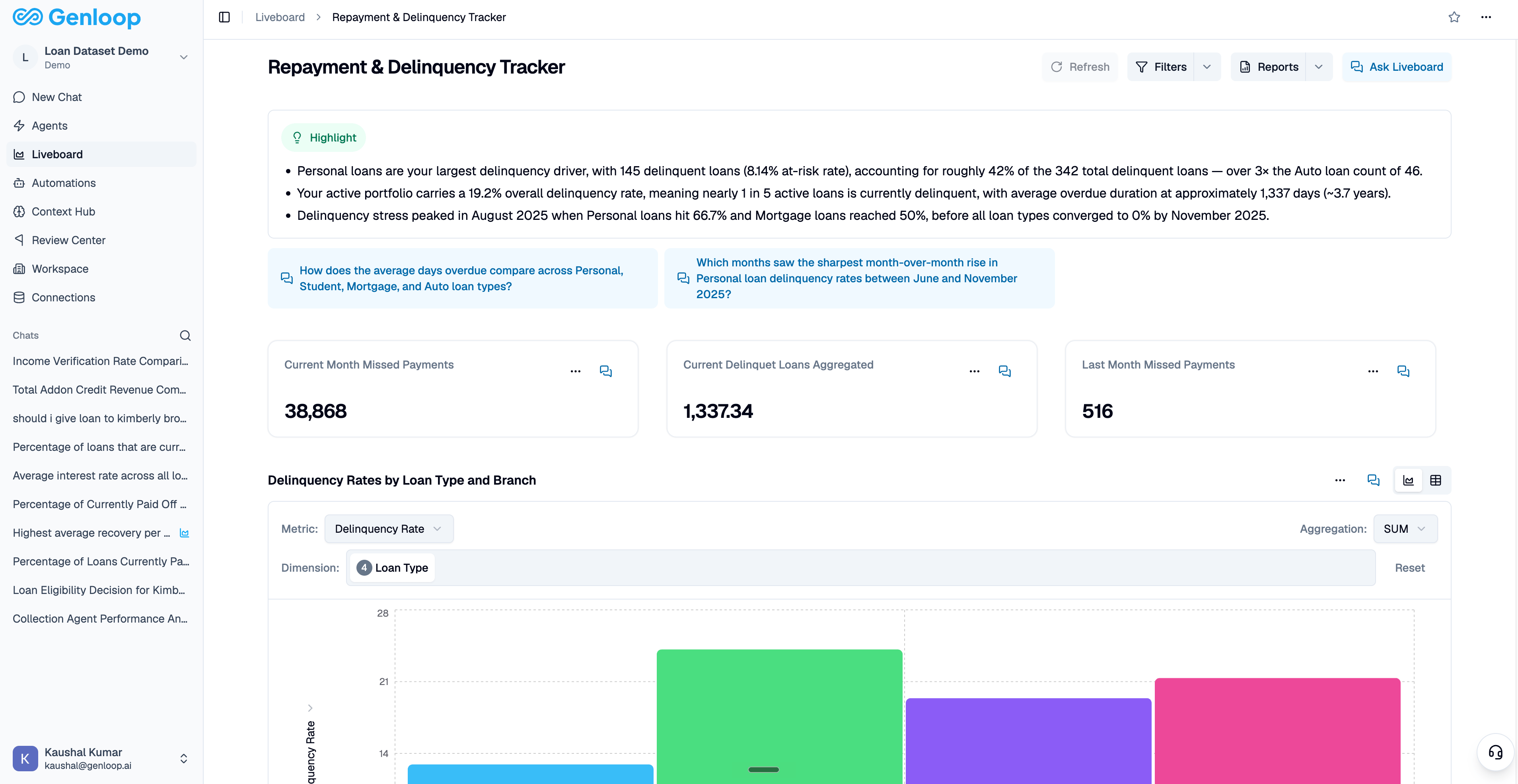
Filtering a Liveboard
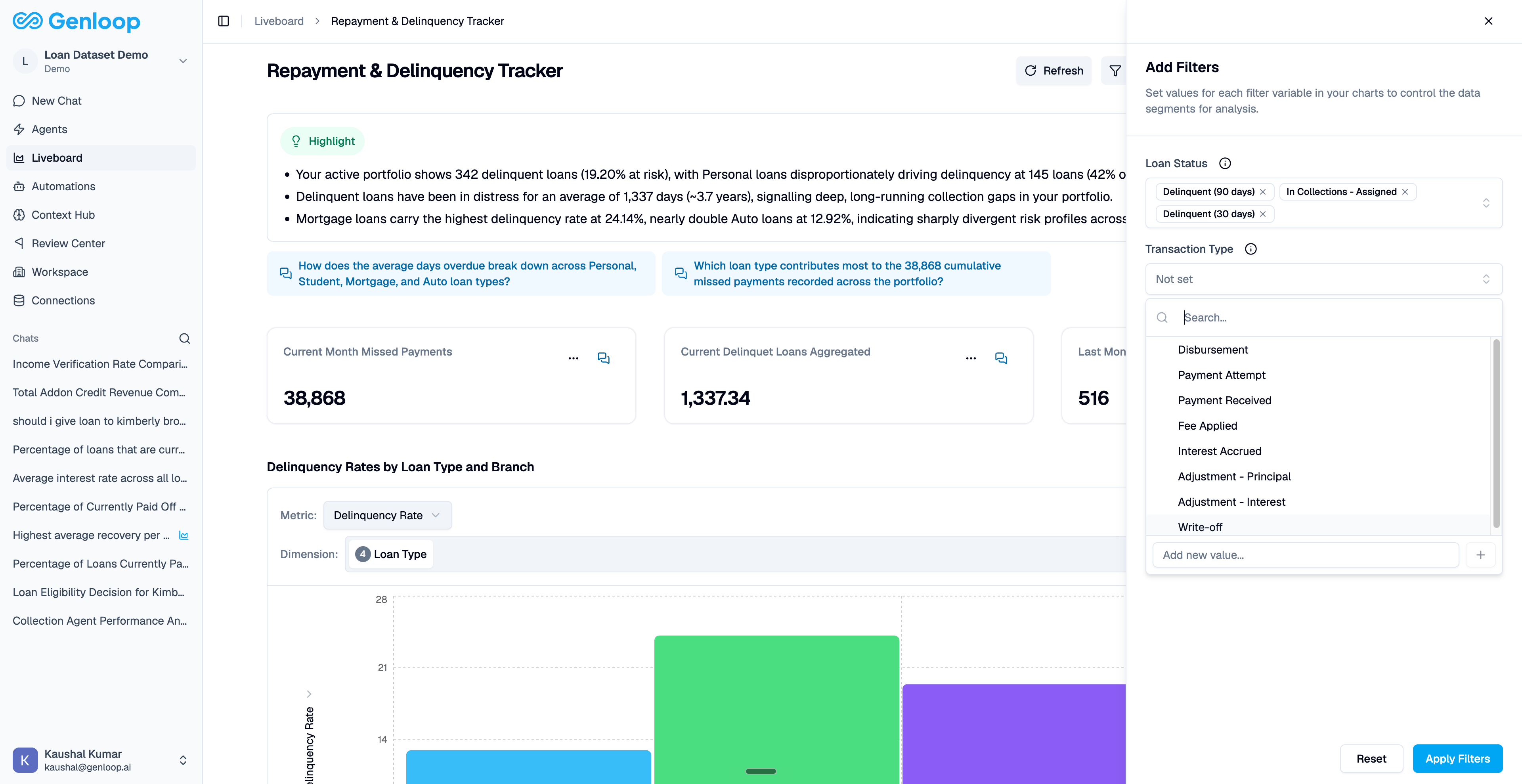
Two board-level filters let you slice every tile at once:- Date filters: Pick a window (Today, Last 7 / 30 / 90 days, or a custom range) applied across the board’s date columns.
- Filters: Set values for the variables in your tiles (for example, Loan Status or Region) from the Add Filters sheet.
Keeping data live
Tiles are not static snapshots. Click Refresh to re-run every tile against current data and regenerate the highlights. There is a short cooldown between refreshes, and the button shows when the board was last refreshed.Asking questions about a Liveboard
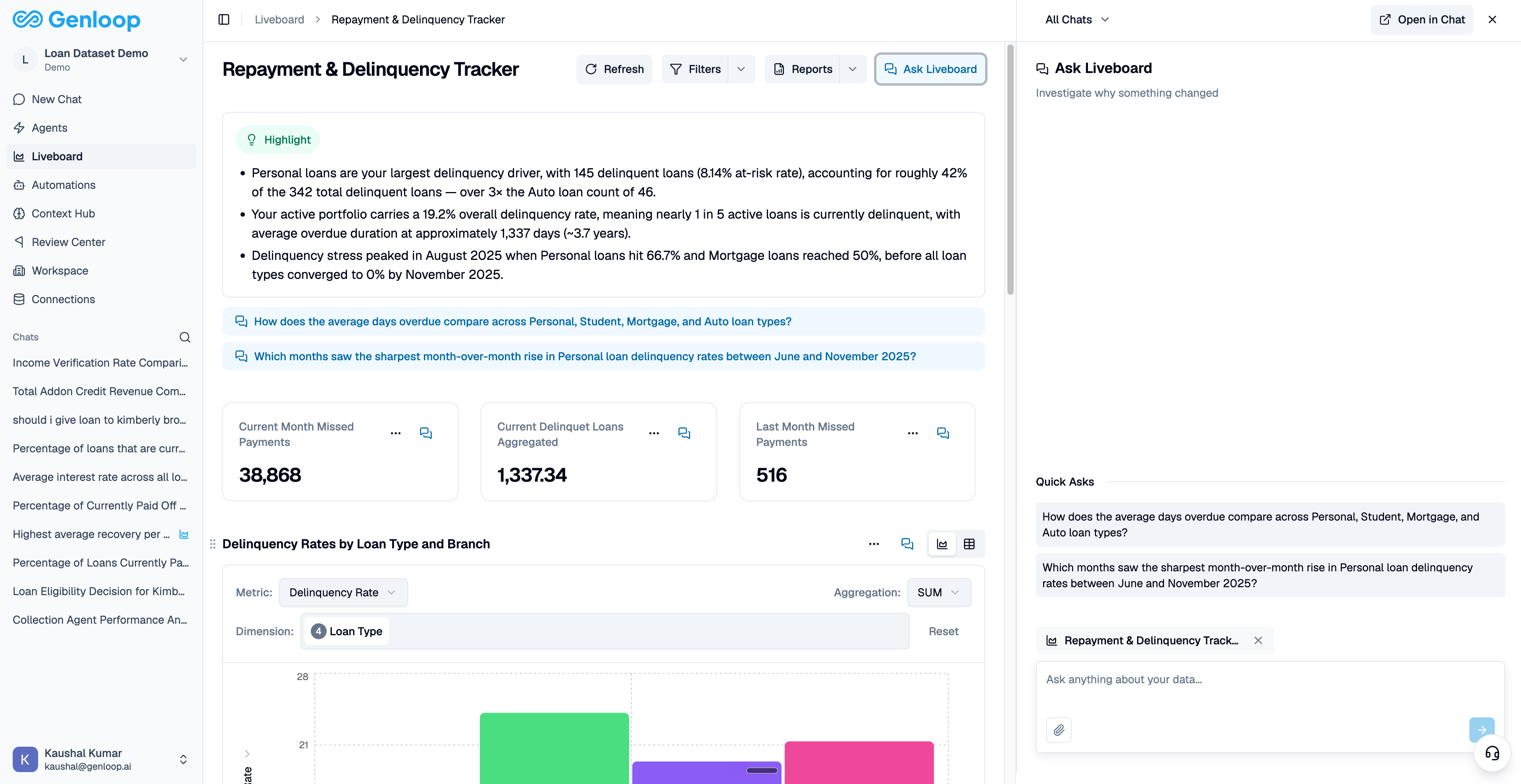
A Liveboard is not just something to read. You can ask questions directly on top of it. Ask Liveboard opens a conversation that already knows what you are looking at, so you can dig into a number without re-explaining your data or starting from a blank Chat. There are three ways to start:- Click Ask Liveboard in the board header to ask about the whole dashboard.
- Use the Ask action on any tile to focus on that single metric or chart.
- Click one of the suggested questions in a Highlight to jump straight in with that question.
What makes it different from Chat
Ask Liveboard runs on the same engine as Chat, so you get the same verified answers, but grounded in the dashboard in front of you:- It answers on exactly what you see. Questions run against the current data behind your tiles, including any filters you have applied and the way each chart is currently set up. You do not pick a database or restate the context.
- Same depth as Chat. Every answer comes with its query plan and charts, you can view or edit the SQL, and Genloop will ask clarifying questions or suggest follow-ups as the conversation builds.
- A running thread per board. Each Liveboard keeps its own Ask history, so you can reopen an earlier investigation or start a new one from the panel, and the answer keeps generating even if you close the panel to look around, ready when you come back.
Data Apps: reports and presentations
Turn any Liveboard into a document or a deck built on live data. See Data Apps for how to create, format, and schedule one.Next steps
Data Apps
Turn this Liveboard into a report or presentation.
Automations
Put a recurring Data App on a schedule, or on a condition.