
Starting a chat
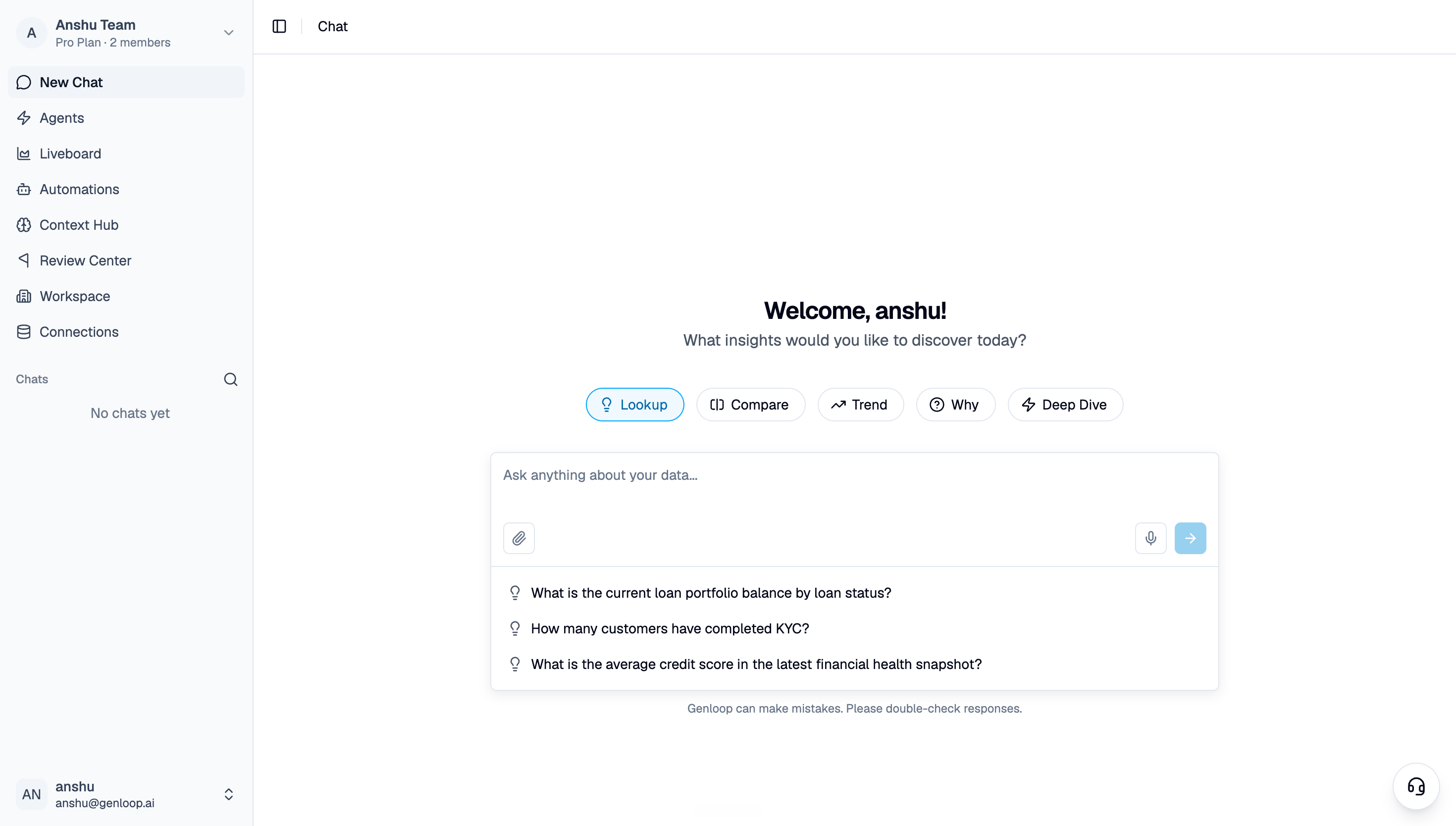
Click New Chat in the sidebar to open a fresh thread. Genloop greets you with a few suggested questions based on your connected data — click one to run it instantly, or write your own in the input bar at the bottom. The chips above the input — Lookup, Compare, Trend, Why, and Deep Dive — are question starters. Selecting one surfaces example questions of that kind to help you phrase your ask. They are prompts to get you going, not settings; Genloop decides how to answer based on the question itself, not the chip you picked. Every thread stays in the sidebar under Chats, so you can pick up an earlier conversation at any time or start over with New Chat.Asking a question
Type your question the way you would ask a colleague. You can be as specific or as exploratory as you want:- Specific — “What is the average credit score in the latest financial health snapshot?”
- Exploratory — “Which loan types are driving the most delinquency, and why?”
- Attach a file — Click the paperclip to add a file for Genloop to reference alongside your connected data.
- Voice input — Click the microphone to dictate your question instead of typing.
How Genloop answers
Genloop reads every question and decides, on its own, how much work it needs. Simple lookups run as a single query. Anything that needs several steps — comparisons, root-cause analysis, documents, the web, or a report — is handled agentically. You do not choose the path; Genloop routes each question at runtime based on what it is actually asking.Simple questions
A direct, single-step lookup answerable with one SQL query against one source. You get the generated SQL, the result table, and a chart — right away, no extra steps.
Agentic questions
A question that needs multiple steps. Genloop builds an execution plan, may pause to clarify or get your approval, runs the steps across specialized agents, and synthesizes the results into one answer.
Simple questions
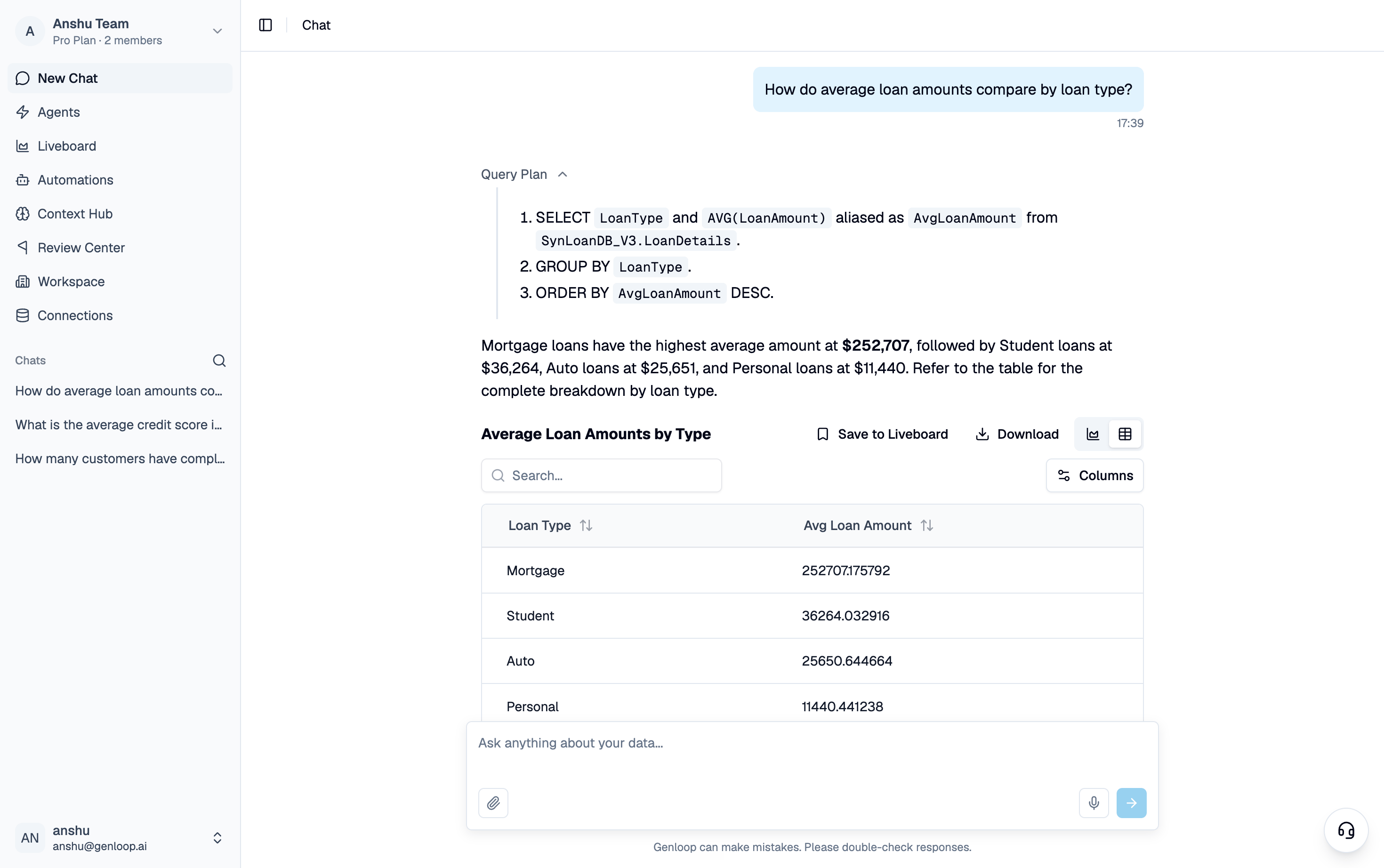
For a straightforward lookup, Genloop writes a single SQL query, runs it, and returns the answer as a written summary plus a table and chart. Expand the Query Plan above the answer to see the exact query it ran — for example, aSELECT with a GROUP BY and ORDER BY. This is not just for transparency; it is how you catch a wrong assumption before it becomes a decision.
Agentic questions
When a question needs more than one step, Genloop plans the work as an execution plan — a sequence of steps, each handled by the right specialized agent (querying a database, searching your documents, running Python analysis, searching the web, or compiling a report). Steps that do not depend on each other run in parallel, and the results are synthesized into a single answer.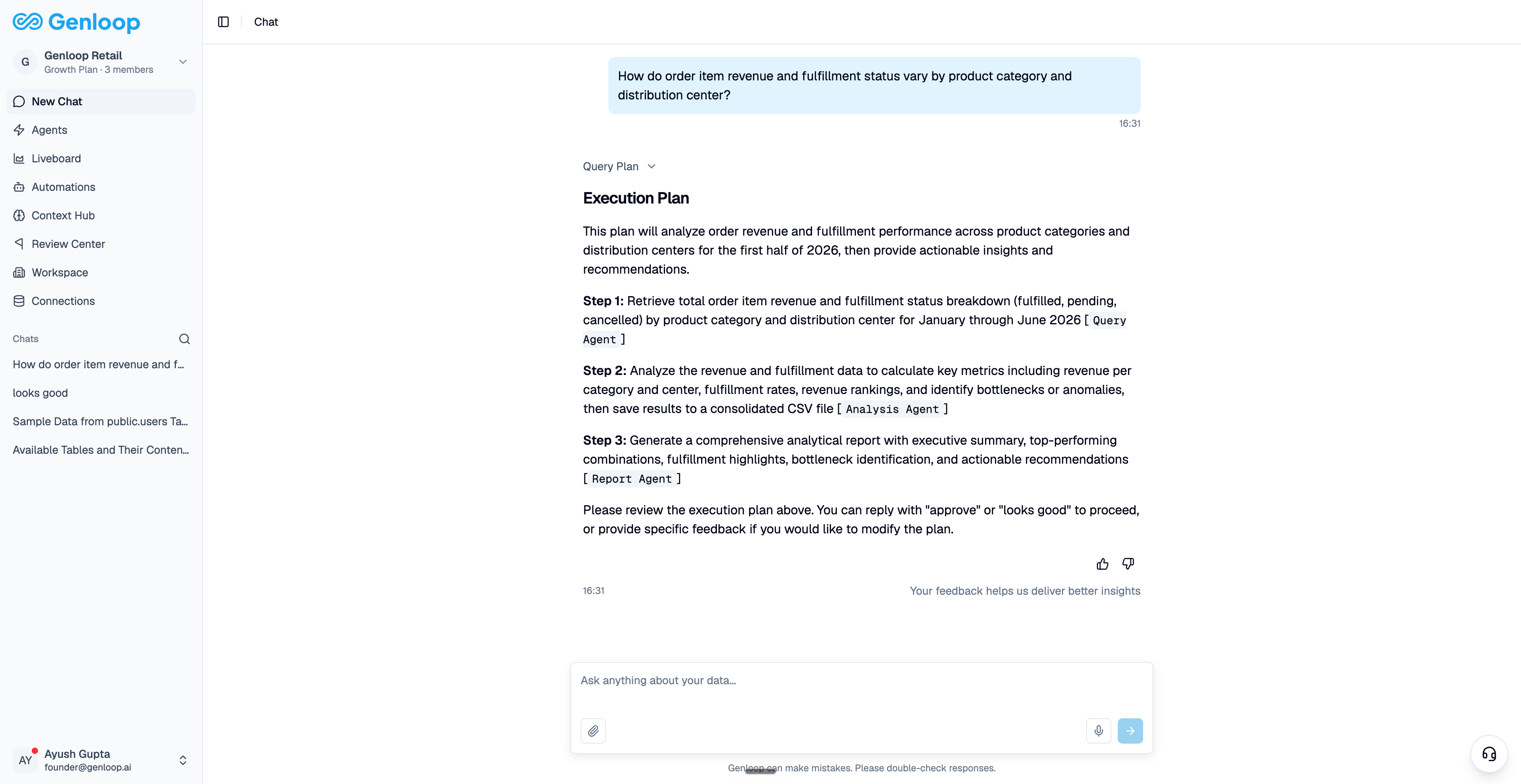
- Clarifying questions — If your question is ambiguous, Genloop pauses and asks a follow-up before it runs anything — for example, “Which date range?” or “Which customer segment?” You answer inline, and Genloop folds your answer into the question and continues. These prompts are blocking: the run waits on your response.
- Plan approval — For a substantial multi-step plan, Genloop can show you the plan and wait for your go-ahead before executing. Reply to approve it, or ask for a change and Genloop revises the plan and checks again. Simple, single-step questions skip this and run straight through.
The query plan and the approval step exist so you stay in control. Genloop can make mistakes — reviewing the plan before it runs is your chance to steer it.
Asking about the future
Most questions in Chat look backward: last quarter, last month, last week. Some don’t. Ask “which category will drive revenue next quarter” or “which customers are likely to churn,” and Genloop builds a predictive model on your data and returns the projection the same way it returns any other answer: with the reasoning visible, on your governed data. There is no separate ML workflow to set up and no handoff to a data science queue. It is the same Chat, the same Query Plan, the same investigate-and-refine loop, just pointed at what happens next instead of what already happened.Reviewing and editing the query
Every answer keeps its query available for inspection. Open the Query Plan to read the steps, and open SQL Query to view or edit the generated SQL directly. If you want to adjust the logic — tweak a filter, change a grouping, fix a join — edit the SQL in place and click Run to execute your version. Genloop returns an updated answer from your edited query, so you can refine the result without rephrasing the whole question.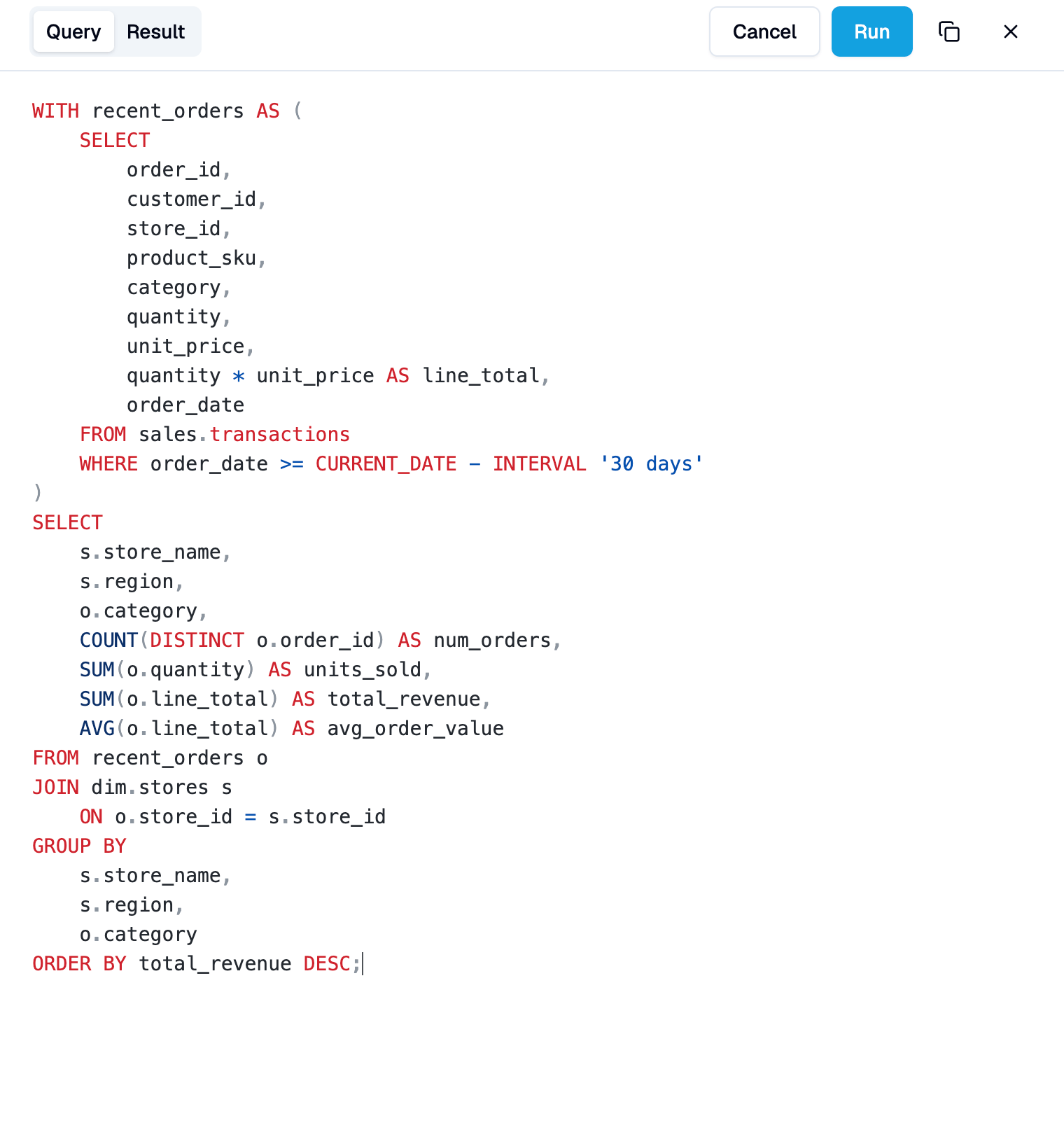
Reading the answer
Below the written summary, the result is shown as a table or a chart. Switch between Table and Visualisation with the toggle above the result. In table view you can:- Search across all rows
- Click a column header to sort (ascending, descending, or off)
- Use Columns to choose which columns are shown, and filter a column by value or condition
- Expand with Show more rows when a result is long
When one chart isn’t enough
Some questions need more than a single chart to answer well. Ask something like “how did revenue move across channels and categories this quarter,” and Genloop weaves multiple charts into one composed answer instead of making you ask three follow-up questions. Every chart in that answer keeps the same controls: switch its type, adjust its axes, or change its breakdown on its own.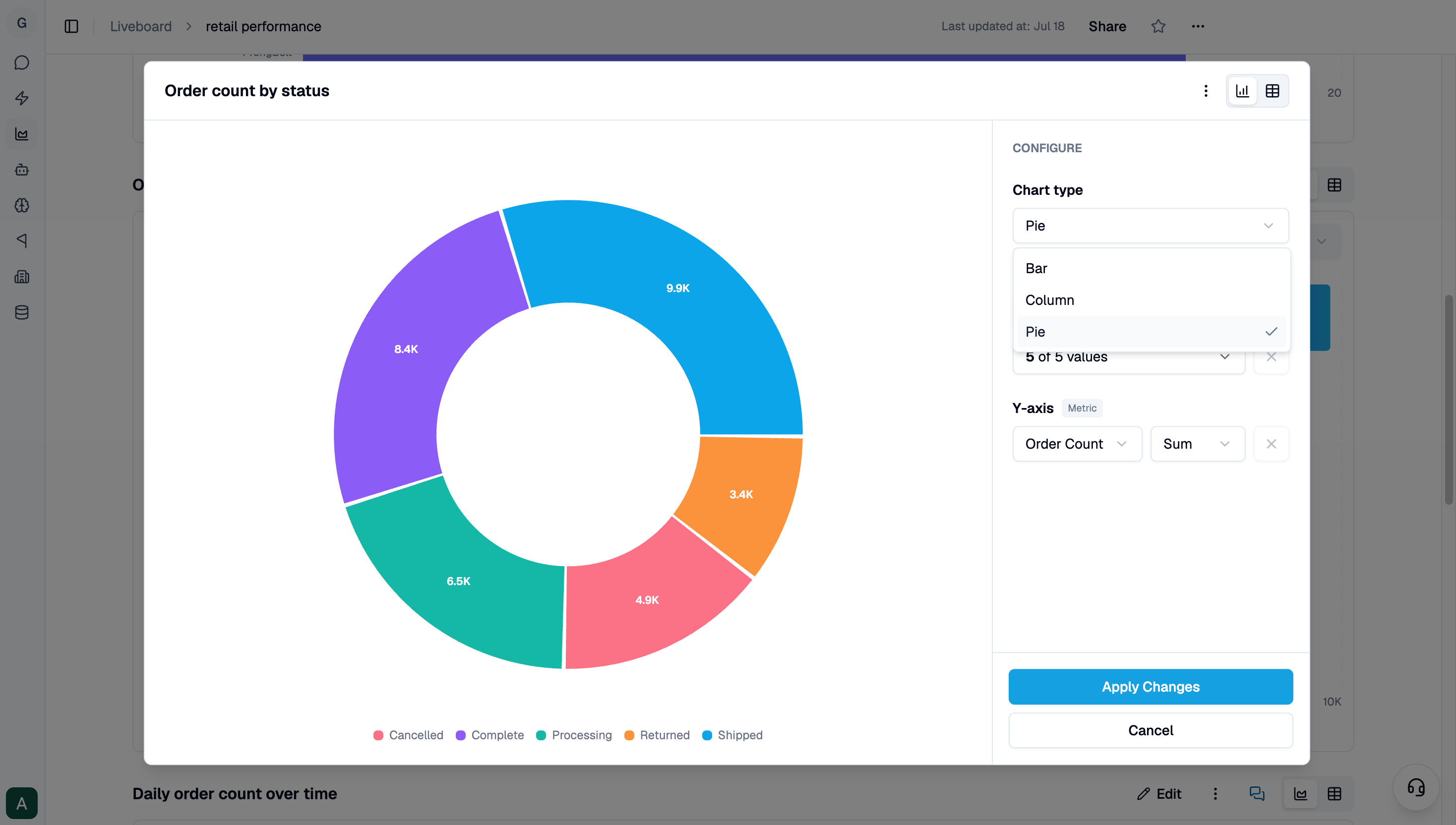
Digging deeper
After an answer, Genloop suggests where to go next under Explore Further — one-click follow-up questions that build on what you just saw. Unlike clarifying questions, these are optional; click one to send it, or keep typing your own. Because follow-ups happen in the same thread, the conversation builds naturally on everything that came before.What you can do with an answer
Every answer is a starting point, not an endpoint. Each one carries a set of actions:Save to Liveboard
Pin the answer as a tile on a Liveboard, choosing chart or table view first. The tile stays connected to your live data and refreshes automatically.
Remember This
Save something worth keeping as business context. Genloop asks you to confirm the answer is correct, then proposes it as a memory update for your team to approve.
Thumbs up / down
Confirm an answer is right, or flag it as wrong and add a note on what went wrong. This feedback is aggregated for your data team.
Request Validation
Send the answer to a data expert to review in the Review Center, where they can approve the logic as a trusted, verified result.
Tips for better results
- Start with questions you already know the answer to. Verify the reasoning before you rely on it for decisions you are less certain about.
- Break complex asks into steps. One question at a time gets better results than a single sprawling prompt.
- Read the Query Plan when a number looks off. The fastest way to spot a wrong join or filter is to look at the SQL — and you can edit and re-run it if needed.
- Teach it as you go. When Genloop gets something right that it did not know before, use Remember This so it applies that context next time.
Next steps
Liveboards
Pin answers into a shared dashboard that updates as your data does.
Agents
See which specialized agents handle your questions behind the scenes.