> ## Documentation Index
> Fetch the complete documentation index at: https://docs.genloop.ai/llms.txt
> Use this file to discover all available pages before exploring further.
# Upload a data file
> Upload CSV or Excel files to Genloop as queryable data sources, add optional business-context documents, and query them in natural language without a database connection.
Uploading a data file turns a spreadsheet into a queryable data source. Genloop maps the file to tables and builds memory on it, the same way it does for a database connection. Use this when your data lives in a file rather than a database.
Supported formats: CSV and Excel (`.xlsx`, `.xls`). Maximum 10 MB per file.
To begin, open the **Structured Data** tab and click **Upload data file**.
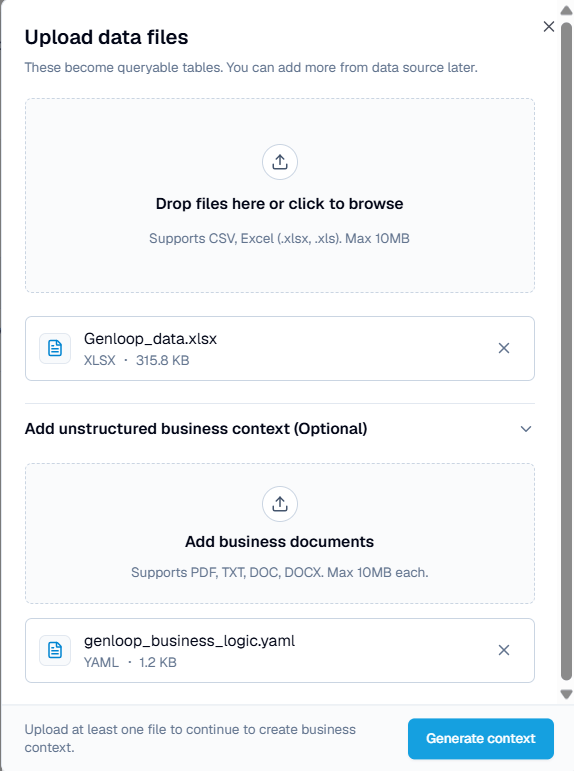 Data files and business-context documents are different. Data files become queryable tables. Business-context documents describe how to read that data and do not create tables. You can add both in the same dialog.
## Upload a file
Drag files onto the drop zone, or click to browse. Each file becomes a queryable table. You can add more files to the same source later.
Expand **Add unstructured business context** and upload documents that explain how your data should be read, such as metric definitions, KPI logic, or business rules. Supported formats: `.pdf`, `.txt`, `.doc`, `.docx`. Maximum 10 MB each.
Click **Generate context**. Genloop maps the files to tables, applies any business context, and builds memory on the result.
## After the upload
The file appears in your **Structured Data** list with a processing status. Once processing completes, you can query it in Chat like any connected database.
## Next steps
Manage business documents that inform Genloop's answers.
Connect a live database for larger or changing datasets.
Data files and business-context documents are different. Data files become queryable tables. Business-context documents describe how to read that data and do not create tables. You can add both in the same dialog.
## Upload a file
Drag files onto the drop zone, or click to browse. Each file becomes a queryable table. You can add more files to the same source later.
Expand **Add unstructured business context** and upload documents that explain how your data should be read, such as metric definitions, KPI logic, or business rules. Supported formats: `.pdf`, `.txt`, `.doc`, `.docx`. Maximum 10 MB each.
Click **Generate context**. Genloop maps the files to tables, applies any business context, and builds memory on the result.
## After the upload
The file appears in your **Structured Data** list with a processing status. Once processing completes, you can query it in Chat like any connected database.
## Next steps
Manage business documents that inform Genloop's answers.
Connect a live database for larger or changing datasets.