> ## Documentation Index
> Fetch the complete documentation index at: https://docs.genloop.ai/llms.txt
> Use this file to discover all available pages before exploring further.
# Chat
> Ask data questions in plain English with Genloop Chat and receive verified answers, generated SQL, charts, and full reasoning you can audit or share.
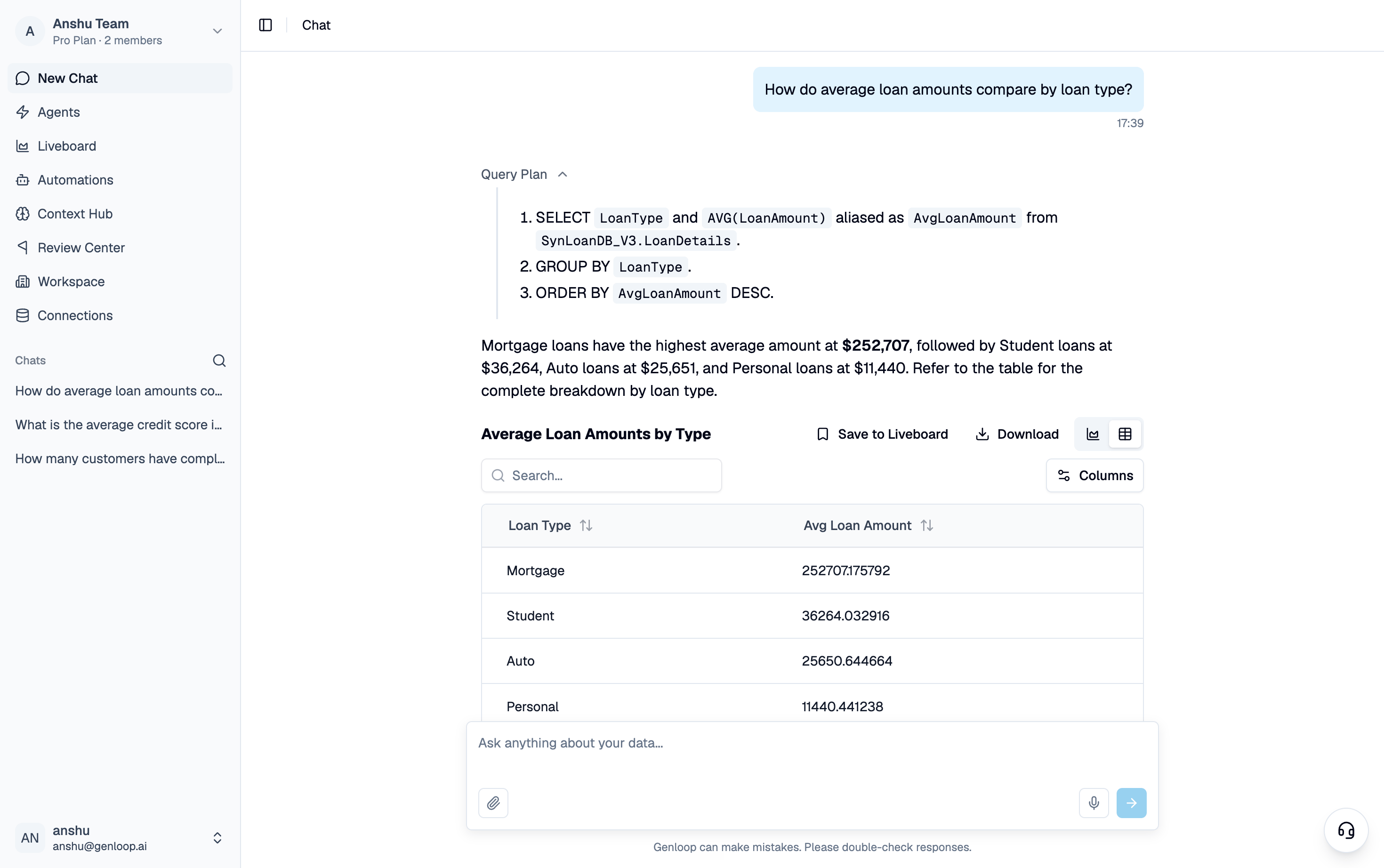
Chat is where you spend most of your time in Genloop. Type a question in plain English, and Genloop returns a verified answer with the full reasoning behind it — the tables it used, the logic it applied, and how it reached the result.
Every answer in Chat is a starting point. You can follow up, dig deeper, or investigate something that looks off — all within the same conversation.
 ## Asking a question
Type your question in the input bar at the bottom of the screen and hit send. Genloop processes it against your connected data and returns an answer — usually a combination of a written response, a data table, and a chart visualization.
You can toggle between table and chart view on any answer. Follow-up questions happen in the same thread, so the conversation builds naturally. When you want to start fresh, click **New Chat** in the sidebar.
## Reading the answer
Each answer shows the execution plan Genloop followed to get there. You can see the steps it took, the data sources it referenced, and the SQL it ran. This is not just for transparency — it is how you catch something wrong before it becomes a decision.
At the bottom of every answer you will find three actions:
* **Thumbs up** to confirm the answer is correct
* **Thumbs down** to flag it as wrong
* **Request Validation** to send it to your data team for review in the Review Center
## Remember This
If an answer contains something worth keeping as business context, click **Remember This**. Genloop will prompt you to confirm whether the answer is correct and should be saved to improve future responses. This is one of the main ways the platform learns how your business works.
## Saving to a Liveboard
Any answer can be pinned to a Liveboard directly from Chat. Click **Save to Liveboard** on the answer to add it as a tile. You can toggle between chart and table view before saving.
Start with questions you already know the answer to. That way you can verify the reasoning before relying on it for decisions you are less certain about.
## Next steps
Save answers and build shared views your team comes back to.
See how validation requests and memory updates are reviewed by your data team.
## Asking a question
Type your question in the input bar at the bottom of the screen and hit send. Genloop processes it against your connected data and returns an answer — usually a combination of a written response, a data table, and a chart visualization.
You can toggle between table and chart view on any answer. Follow-up questions happen in the same thread, so the conversation builds naturally. When you want to start fresh, click **New Chat** in the sidebar.
## Reading the answer
Each answer shows the execution plan Genloop followed to get there. You can see the steps it took, the data sources it referenced, and the SQL it ran. This is not just for transparency — it is how you catch something wrong before it becomes a decision.
At the bottom of every answer you will find three actions:
* **Thumbs up** to confirm the answer is correct
* **Thumbs down** to flag it as wrong
* **Request Validation** to send it to your data team for review in the Review Center
## Remember This
If an answer contains something worth keeping as business context, click **Remember This**. Genloop will prompt you to confirm whether the answer is correct and should be saved to improve future responses. This is one of the main ways the platform learns how your business works.
## Saving to a Liveboard
Any answer can be pinned to a Liveboard directly from Chat. Click **Save to Liveboard** on the answer to add it as a tile. You can toggle between chart and table view before saving.
Start with questions you already know the answer to. That way you can verify the reasoning before relying on it for decisions you are less certain about.
## Next steps
Save answers and build shared views your team comes back to.
See how validation requests and memory updates are reviewed by your data team.