> ## Documentation Index
> Fetch the complete documentation index at: https://docs.genloop.ai/llms.txt
> Use this file to discover all available pages before exploring further.
# Connect your data
> Connect your databases, files, and apps to Genloop so it can learn your tables, metrics, and business logic and return answers that reflect your business.
Head to **Connections** in the left sidebar to get started.
## Two ways to connect
### Connect a database
Supported sources: MySQL, PostgreSQL, Snowflake, BigQuery, Redshift, Databricks.
This is a 4-step process:
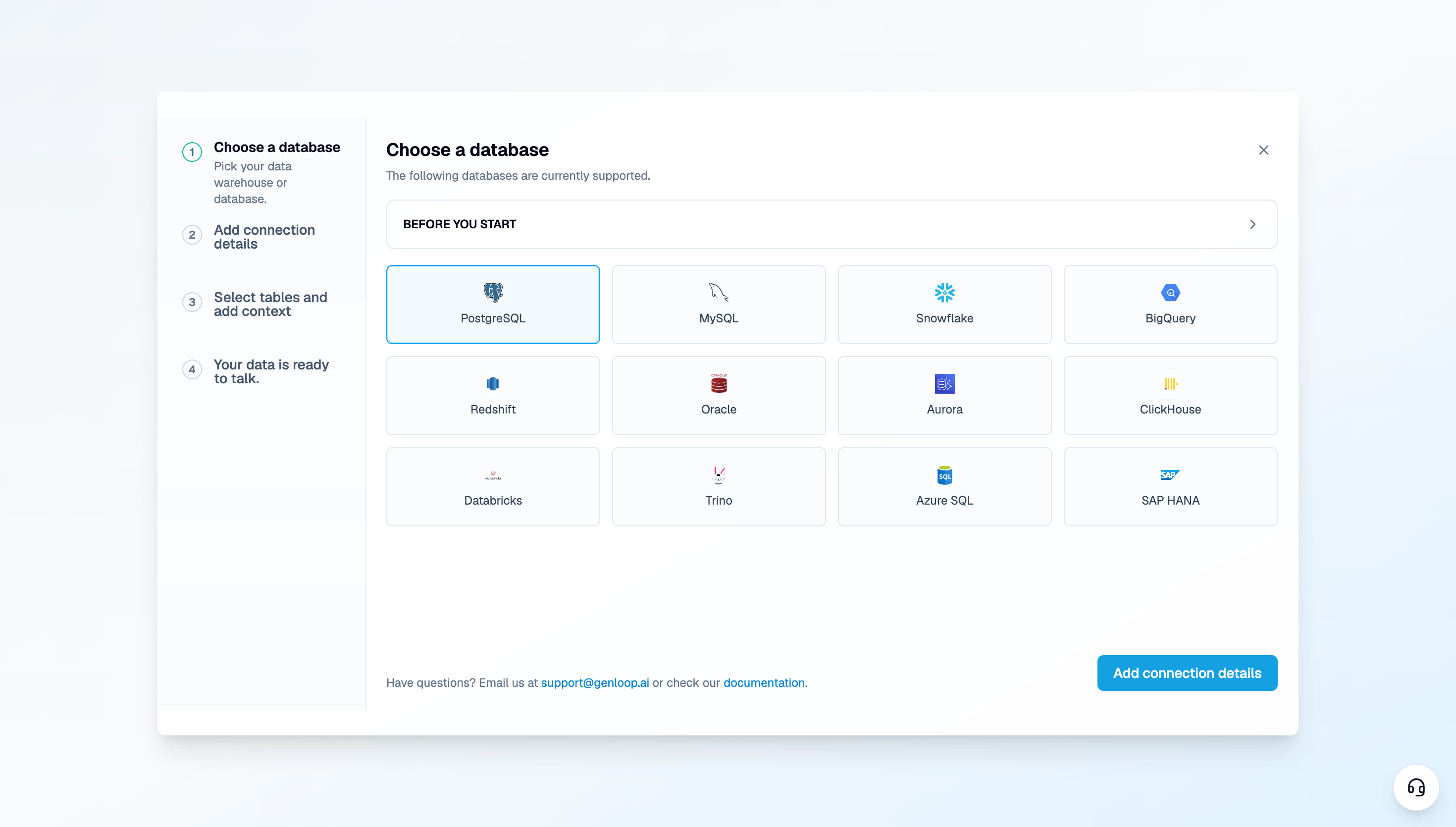
**Step 1 — Select your database** Choose your database type from the list of supported sources.
 **Step 2 — Add credentials** Enter your connection details: host, port, database name, and credentials. Genloop connects directly to your source — no data copies are created.

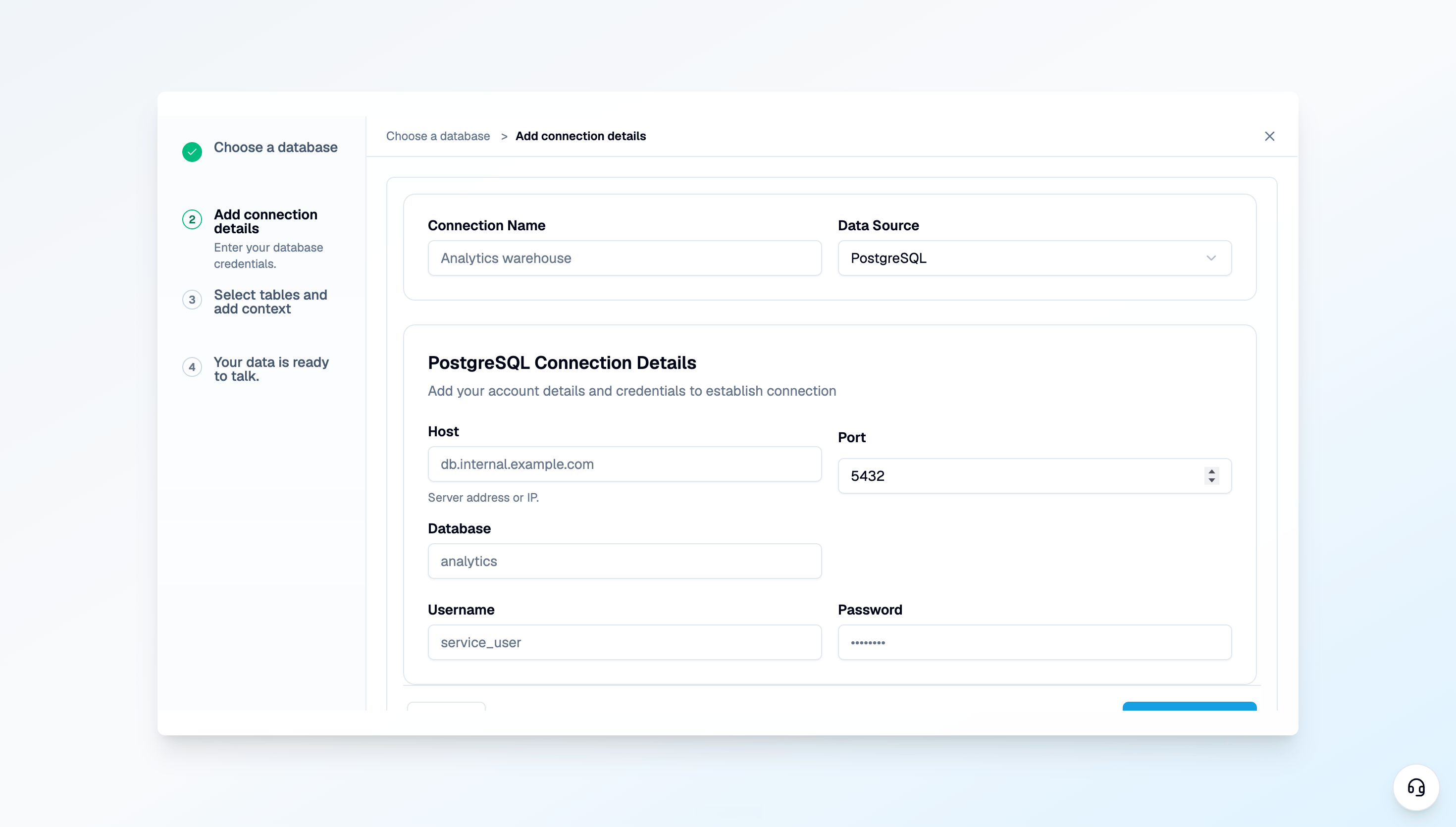 Make sure the credentials you're using have read access to the tables you want Genloop to work with. Write access is not required.
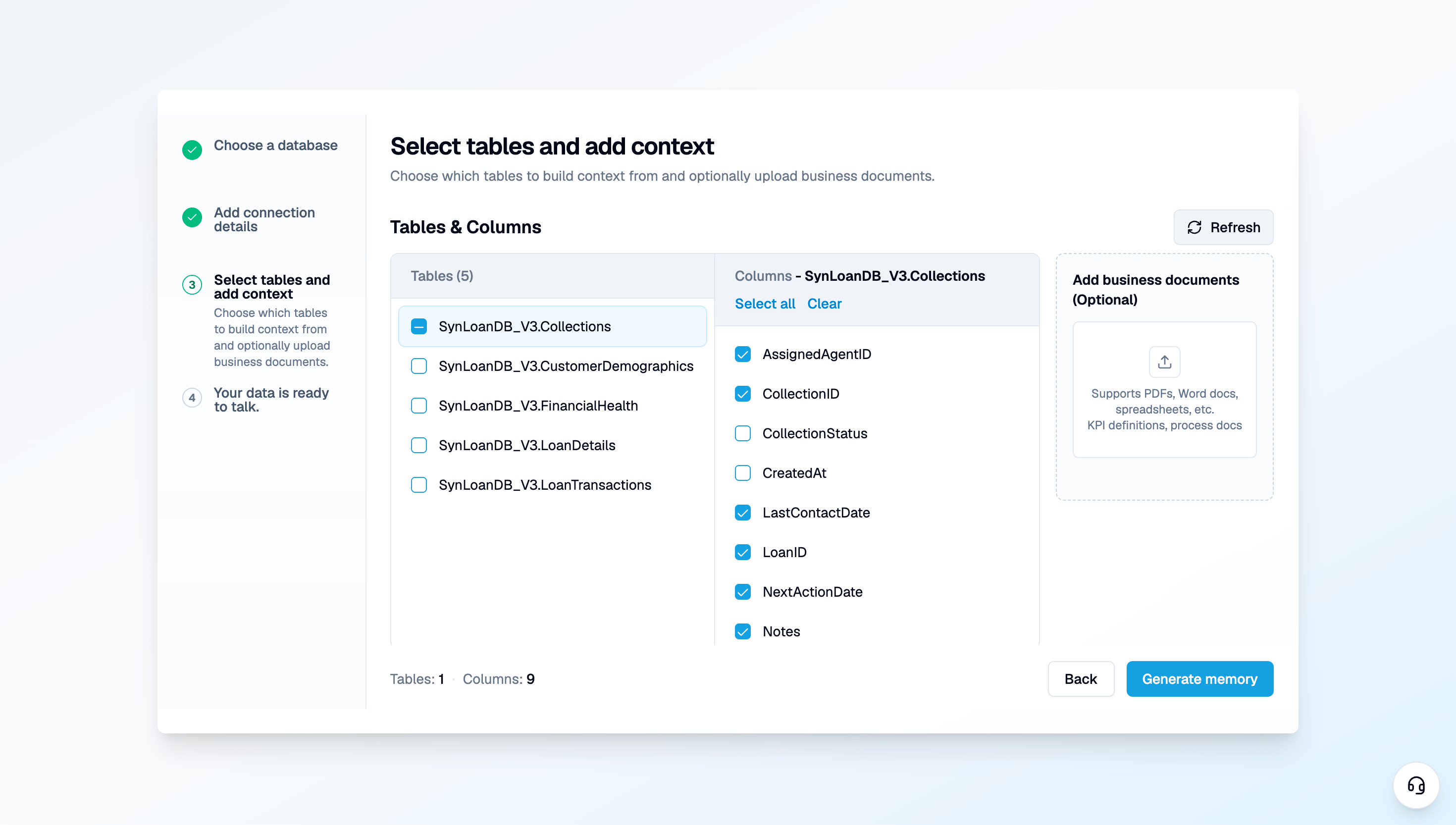
**Step 3 — Select tables and columns** Choose which tables and columns you want Genloop to build memory on. You don't have to include everything — start with the data that matters most to your team's daily questions.
At this step, you can also upload **business context documents** — things like metric definitions, KPI logic, data dictionaries, or business rules in `.md`, `.txt`, `.pdf`, or `.docx` format. This helps Genloop understand not just the shape of your data, but how your business actually uses it. The more context you add here, the better your answers get from day one.
Make sure the credentials you're using have read access to the tables you want Genloop to work with. Write access is not required.
**Step 3 — Select tables and columns** Choose which tables and columns you want Genloop to build memory on. You don't have to include everything — start with the data that matters most to your team's daily questions.
At this step, you can also upload **business context documents** — things like metric definitions, KPI logic, data dictionaries, or business rules in `.md`, `.txt`, `.pdf`, or `.docx` format. This helps Genloop understand not just the shape of your data, but how your business actually uses it. The more context you add here, the better your answers get from day one.
 **Step 4 — Memory is created** Genloop processes your selected tables and builds your workspace context. This takes a few minutes. You'll see a progress stream as it runs.
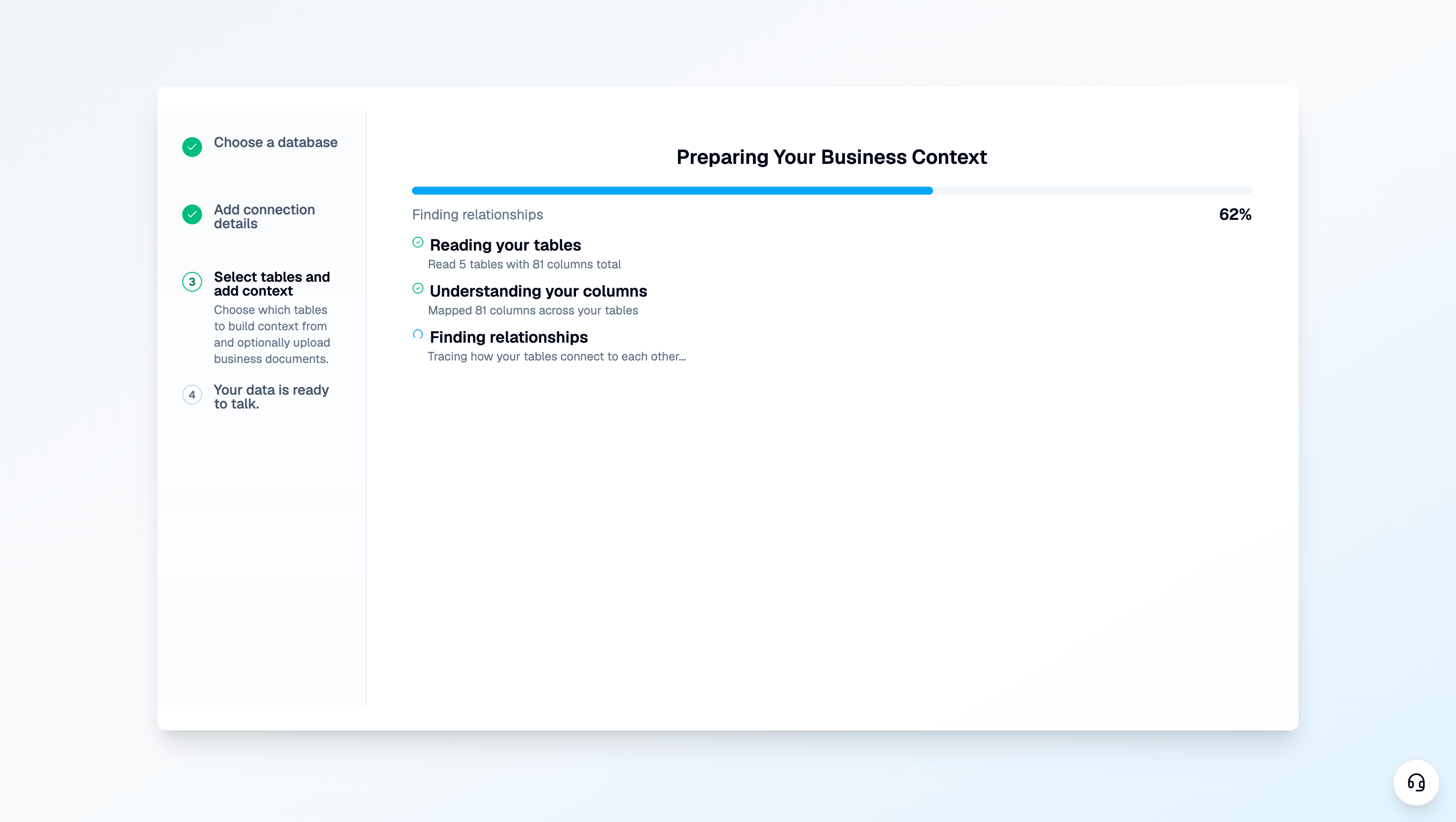 Once complete, your workspace is live and you're ready to start asking questions.
***
### Upload a data file
If you don't have a database connection ready, you can upload a data file directly.
Supported formats: `.csv`, `.xlsx`, `.xls`
At least one data file is required to move forward on this path. Data files are different from business context documents — data files are what Genloop builds memory on, while context documents (docs, markdown files) help Genloop understand your business rules and definitions. You can add both.
Once complete, your workspace is live and you're ready to start asking questions.
***
### Upload a data file
If you don't have a database connection ready, you can upload a data file directly.
Supported formats: `.csv`, `.xlsx`, `.xls`
At least one data file is required to move forward on this path. Data files are different from business context documents — data files are what Genloop builds memory on, while context documents (docs, markdown files) help Genloop understand your business rules and definitions. You can add both.
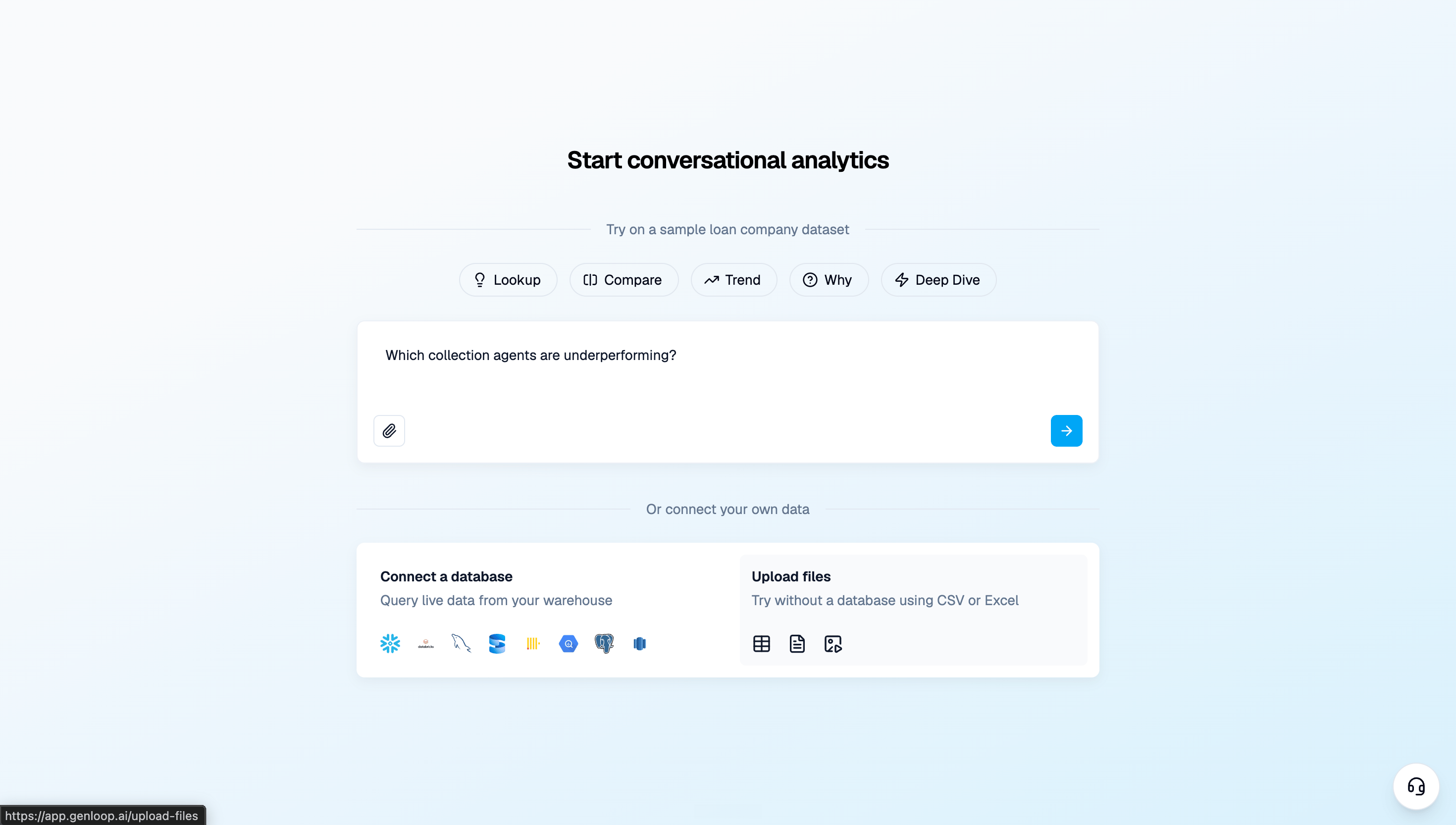 Once your file is uploaded and processed, your workspace is ready.
***
## Your workspace is set up
Your data is connected and Genloop has built its initial context. From here, it keeps learning — every question you ask, every correction you give, every piece of feedback refines what it knows.
Your platform is live. Here's how to get the most out of your first session.
Once your file is uploaded and processed, your workspace is ready.
***
## Your workspace is set up
Your data is connected and Genloop has built its initial context. From here, it keeps learning — every question you ask, every correction you give, every piece of feedback refines what it knows.
Your platform is live. Here's how to get the most out of your first session.